Quick Contact Search & Actions
Key Launcher doubles as a speed-dialer. Search for any contact straight from the home screen and take action in one extra tap — no need to open a contacts app first.
Searching for Contacts
Type any part of a contact's name using the T9 keyboard. Contacts appear alongside app results, marked with a profile photo or a silhouette icon.
To find "John Doe":
- Type
5–6–4–6(J-o-h-n) - John Doe appears in the result list.
You can also search by phone number (if the feature is enabled in Search Settings): type the digits of a number and any contact with that number appears. A phone icon badge on the result indicates it matched by number rather than name.
Contact search requires the Contacts & Calling permission. Enable it in Settings → Permissions. See Essential System Permissions.
Two Tap Targets, Two Behaviors
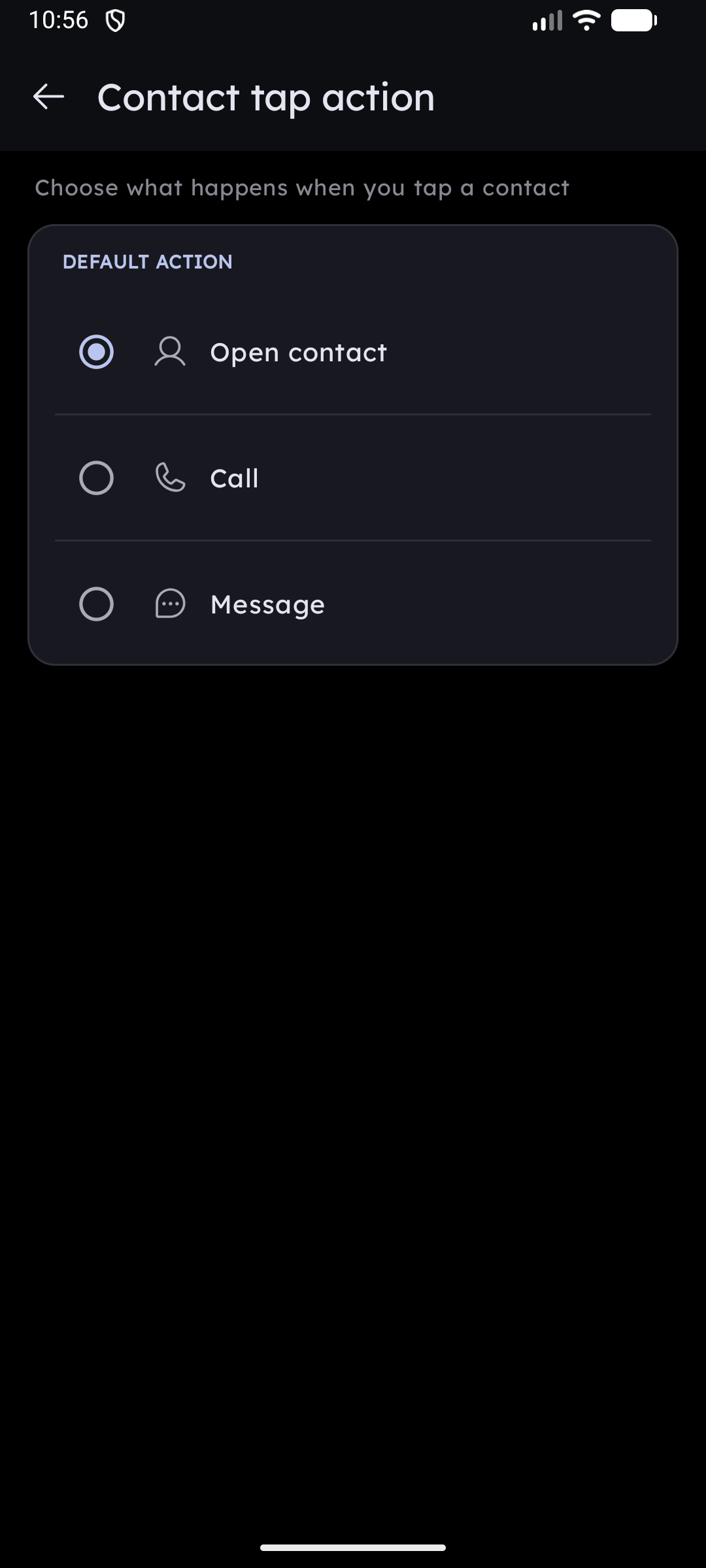
Each contact result has two separate tap zones:
| What you tap | What happens |
|---|---|
| Contact icon / photo | Runs the contact tap action — by default, opens the full contact profile in the system Contacts app |
| Contact name (with ▾ arrow) | Opens the Quick Actions menu |
The ▾ arrow next to the name is only shown when the contact has at least one phone number and Quick Actions is enabled in settings.
Tapping the icon can do more than open the contact card. Under Settings → General → System / Behavior → Contact tap action you can make it call, message, or open Zalo / Viber / WhatsApp instead — with a per-contact number picker for people who have several numbers. See Contact Tap Action.
Quick Actions Menu
Tapping the contact name opens a dropdown with all available actions for that contact.
Single phone number
When a contact has exactly one number, each action shows the number inline:
- Call (xxx-xxx-xxxx) — dials immediately using
ACTION_CALL. If the CALL_PHONE permission has not been granted yet, the system permission dialog appears first. - Text (xxx-xxx-xxxx) — opens your default SMS app with this contact pre-filled.
- Zalo / Viber / WhatsApp — opens a chat with this number directly inside the messaging app. Each option only appears if the app is installed and enabled in Search Settings.
- View Contact — opens the full contact profile.
Multiple phone numbers
When a contact has more than one number, each action becomes an accordion row. Tap a row header (e.g. Call ▾) to expand it and see all numbers — tap a number to execute the action for that specific number.
Turning an action into its own item
Every phone-number row carries a + button. Tap it to promote that action into a standalone item — Call Mom, Message Alex — that lives in your app list and answers to T9 search, so you can dial without opening the contact first. See Quick Actions.
Messaging App Deep-Search
Key Launcher can surface contacts for Zalo, Viber, and WhatsApp directly in the T9 results list (not just in the quick actions menu). This is controlled per-app in Settings → Search Settings:
- Zalo deep search — finds Zalo contacts using the in-app search
- Viber deep search — finds Viber contacts
- WhatsApp deep search — finds WhatsApp contacts
Each toggle is only relevant if the respective app is installed. When enabled, results from that app appear alongside your address book contacts.
Long-Press Contact
Long-pressing a contact icon opens a context menu with options to pin, hide, delete, move to Private Vault, or add to a Super Shortcut. See Long-Press Context Menus → Contacts for the full breakdown.
Privacy
All contact data is read directly from your device's address book via Android's ContactsContract API. Nothing is uploaded to external servers or shared with third parties.