Long-Press Context Menus
Long-pressing any icon in Key Launcher opens a context menu. The available actions depend on the item type: App, Shortcut, Contact, or Folder.
Apps
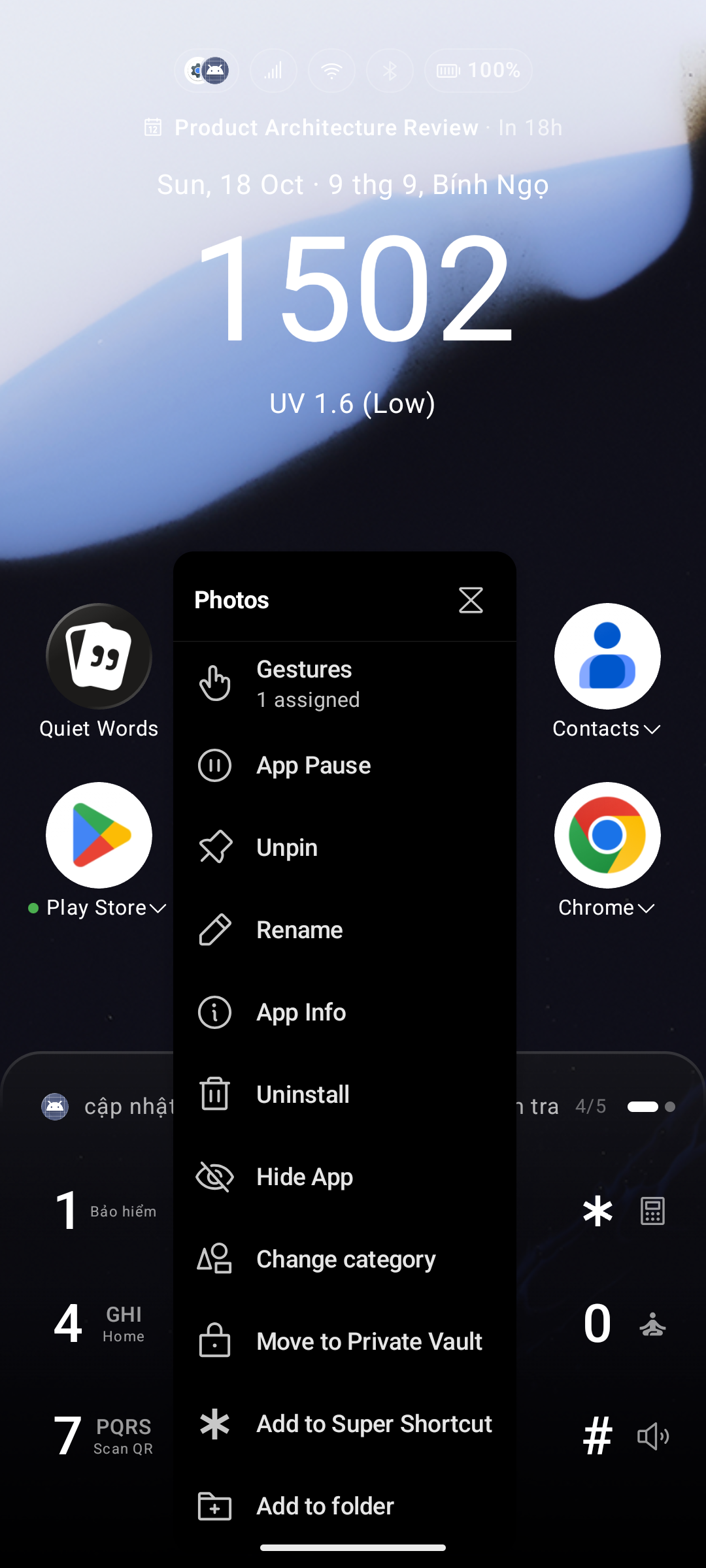
| Action | Description |
|---|---|
| Pin / Unpin | Toggle the app on or off the home screen pinned grid |
| Rename | Change the display label inside Key Launcher (does not affect the system name) |
| Edit Icon | Swap the icon from gallery or an active icon pack 💎 (icon pack requires Pro) |
| App Info | Open Android system settings for this app (clear cache, force stop, manage permissions) |
| Uninstall | Trigger the system uninstall prompt |
| Hide | Remove the app from all search results and the app drawer. Manage hidden apps in Settings → Hidden Items. See Hidden Items. |
| Change Category | Override which drawer tab this app appears under (only shown when Category Tabs is enabled) |
| Move to Vault / Remove from Vault | Move the app into Private Vault — it disappears from the drawer and only appears when the vault is unlocked (shown only when Private Vault is enabled) |
| Add to Super Shortcut | Assign this app to a Super Shortcut hotkey slot |
| Remove from Folder | Remove the app from the current folder and return it to the drawer (shown only when inside a Folder overlay) |
Time Limit — the header of the app context menu also shows a Hourglass () icon. Tap it to set a daily screen-time limit for this app. See App Time Limits below.
Private Space & Work Profile apps get the full menu, including App Info and Uninstall — Key Launcher opens the App Details page inside the correct profile, where the uninstall button lives. Dual/cloned apps created by the manufacturer (not a real Android profile) still hide those two entries, because Android offers no way to address that copy.
Shortcuts
App shortcuts are deep-links published by apps (e.g. "New Message" in Gmail). They have a similar menu to apps, with a few differences.
| Action | Description |
|---|---|
| Pin / Unpin | Toggle the shortcut on or off the pinned grid |
| Rename | Change the display label |
| Edit Icon | Swap the icon from an active icon pack 💎 (requires Pro) |
| App Info | Open Android system settings for the parent app |
| Hide | Remove from search results and the drawer. Manage in Settings → Hidden Items. |
| Change Category | Override the drawer category (shown when Category Tabs is enabled) |
| Move to Vault / Remove from Vault | Move to Private Vault (shown when Private Vault is enabled) |
| Delete / Remove from app list | Removes the shortcut from Key Launcher. Items you added yourself from a Quick Action menu show Remove from app list instead |
| Add to Super Shortcut | Assign to a Super Shortcut hotkey slot |
| Remove from Folder | Remove from the current folder (shown only inside a Folder overlay) |
Contacts
| Action | Description |
|---|---|
| Pin / Unpin | Pin the contact to the home screen grid so it always appears without typing |
| View Contact | Open the contact profile in the system Contacts app |
| Delete Contact | Permanently delete the contact from your address book |
| Hide Contact | Remove from T9 search results without deleting. Manage in Settings → Hidden Items. See Hidden Items. |
| Move to Vault / Remove from Vault | Move to Private Vault (shown when Private Vault is enabled) |
| Add to Super Shortcut | Assign to a Super Shortcut hotkey slot |
Folders
| Action | Description |
|---|---|
| Pin / Unpin | Move the folder between the home screen pinned grid and the All Apps folder strip |
| Rename | Change the folder name |
| Edit Icon | Swap the folder icon from an active icon pack 💎 (requires Pro) |
| Dissolve | Delete the folder structure — all items inside are returned to the drawer |
| Move to Vault / Remove from Vault | Move the entire folder (and its contents) into Private Vault as a single locked tile (shown when Private Vault is enabled) |
App Time Limits
Tap the Hourglass () icon in the header of any app context menu to set a daily usage cap:
- Set a limit in minutes (e.g. 30 min for Instagram).
- Key Launcher tracks screen time via Android's Usage Access API. When the limit is reached, the launcher blocks the app for the rest of the day.
- Adjust or clear limits in Settings → General → App Time Limits.
💎 Free plan — you can set a limit on 1 app. Key Launcher Pro removes this cap.