Private Vault & Hidden Items
Key Launcher provides built-in privacy tools to hide or secure sensitive applications, contacts, shortcuts, and folders.
1. Hidden Items
- Purpose: Hides apps that you rarely use but need to keep installed (e.g., system utilities or rarely opened tools).
- How to use: Long-press an app in the drawer, select Hide app.
- Accessing hidden apps: Go to Settings > Hidden Items to launch or unhide them at any time.
2. Multiple Private Vaults
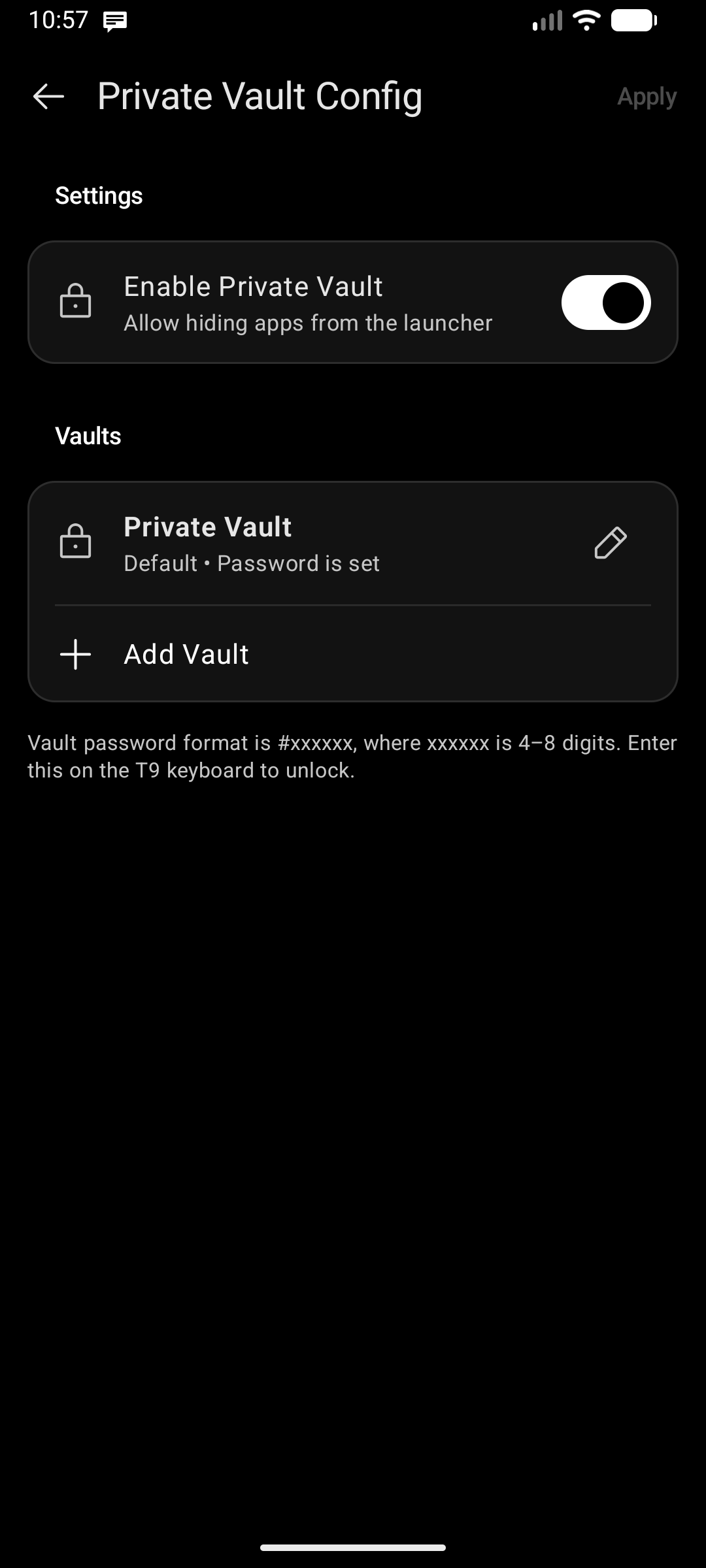
Key Launcher supports Multiple Private Vaults, allowing you to create distinct secure spaces (such as Personal, Work, or Finances), each protected by its own independent passcode.
Key Features:
- Independent Passcodes: Each vault is locked with its own 4-to-8 digit PIN code.
- Vault Naming: Give each vault a custom name (e.g., "Banking", "Family", "Secret Projects"). The active vault's name is displayed right on the keyboard chip when unlocked.
- Granular Item Support: Secure apps, address book contacts, custom shortcuts, and entire folders.
- Safe Deletion: Deleting a secondary vault automatically migrates all its secured items to your Default Vault, preventing accidental data leakage or lost shortcuts.
How to Configure & Manage:
- Go to Settings > Private Vault.
- Setting up or modifying vaults is protected by biometric authentication (fingerprint or face unlock) if supported by your device.
- Tap Add Vault to create a new vault with a distinct name and passcode.
- Tap the edit icon on any vault to update its name or change its passcode.
- In the item context menu on Home or App Drawer, select Add to Private Vault (or Change Vault) to move an item to any specific vault.
Accessing the Vault:
- Secured items are completely hidden from the app drawer, home grid, and universal search results while the vault is locked.
- To open a vault, simply type
#followed by that vault's passcode directly on the home screen T9 keyboard (for example,#1234or#1234#). - Key Launcher instantly recognizes the matching vault, unlocks it, and displays a chip showing the vault's name above the keyboard with only that vault's items.
- Typing
#when no passcode has been configured prompts you with a quick reminder to set up a vault first. - While a vault is open, the position of its Close button (on the keypad, or as a ✕ icon on the vault chip) follows Settings → Keyboard Config → Folder & Private Vault Close Button Position.
On the free plan, you can use the Default Vault holding up to 1 app. Upgrading to Key Launcher Pro unlocks multiple separate vaults and unlimited vault items.