Setup Presets
A Setup Preset captures how your launcher looks — theme, icons, home layout, keyboard, Quick Glance, status bar, panels — into a small code you can share as a QR image, a file, or plain text. Someone else scans it and their launcher takes on your look.
Open Settings → General → Setup Presets (or tap Setup Presets from Showcase your setup).
What a preset contains
| Included | Not included |
|---|---|
| Theme & colors, accent, AMOLED | Your wallpaper |
| Icon pack choice, icon shape, size, labels, badges | Pinned apps, folders, contacts |
| Home grid layout, pages, spacing | Super Shortcuts and Quick Actions |
| Keyboard type, layout, colors, size, sounds | Private Vault contents and password |
| Clock & Quick Glance, status bar | API keys and any account data |
| Focus Mode styling, panel & page order | Usage statistics |
A preset is a whitelist of appearance settings only — nothing personal ever travels with it. Wallpaper is deliberately left out, so the person applying it keeps their own; send the image separately if you want an exact match.
Creating and sharing
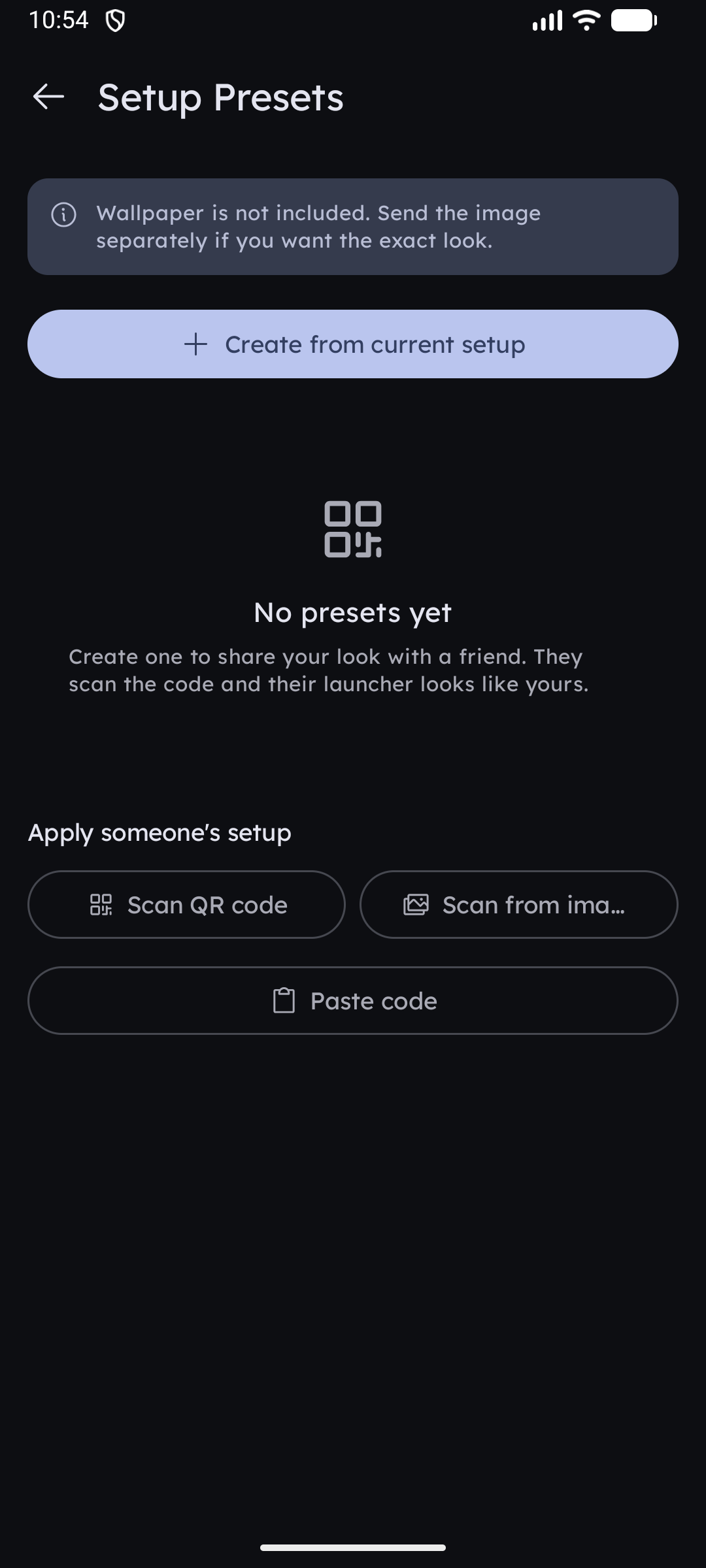
- Tap Create from current setup and give the preset a name.
- The preset opens with its QR code. From there:
| Action | What it does |
|---|---|
| Download | Saves the QR image to your gallery (Android 10+) |
| Share | Sends the QR image — or the .klpreset file if the setup is too detailed for a code |
| Copy code | Copies the preset as text, for chat apps or notes |
| Rename / Delete | Manage saved presets; up to 30 are kept |
💎 Pro — creating and sharing presets is part of Key Launcher Pro (included in the 30-day trial). Applying someone else's preset is free for everyone.
Only settings that differ from the defaults are stored, which is what keeps a whole setup inside one scannable code. If your setup still matches every default, there is nothing to share yet.
Applying someone's setup
Under Apply someone's setup:
- Scan QR code — with the camera. No camera permission is requested; the system scanner handles it.
- Scan from image — pick the screenshot a friend sent you. This is usually the easier route.
- Paste code — the field pre-fills automatically if a preset code is already on your clipboard.
A preview appears first, listing how many settings will change, grouped by area, plus anything that will be skipped:
- an icon pack you don't have installed — the preset names it so you can go and get it,
- a custom font, which stays on the sender's phone,
- settings your app version doesn't know yet.
Tap Apply and the launcher restarts with the new look.
Undo
After applying, an Undo banner appears on the Setup Presets screen. It restores exactly the settings the preset overwrote, and it survives the restart — so trying out a friend's setup is never a one-way trip.
If scanning isn't available
The QR scanners need Google Play services. On a device without them, the two scan buttons are hidden and Paste code remains — it always works offline.