Initial Setup & Onboarding
Setting up Key Launcher is simple, but configuring it as your primary workspace requires a few steps to ensure Android does not revert to your device's stock launcher.
Step-by-Step Guided Tour
Upon the first boot of Key Launcher, you are greeted with a multi-page interactive setup. The flow walks you through the concept, lets you personalize the launcher, and picks your starter apps:
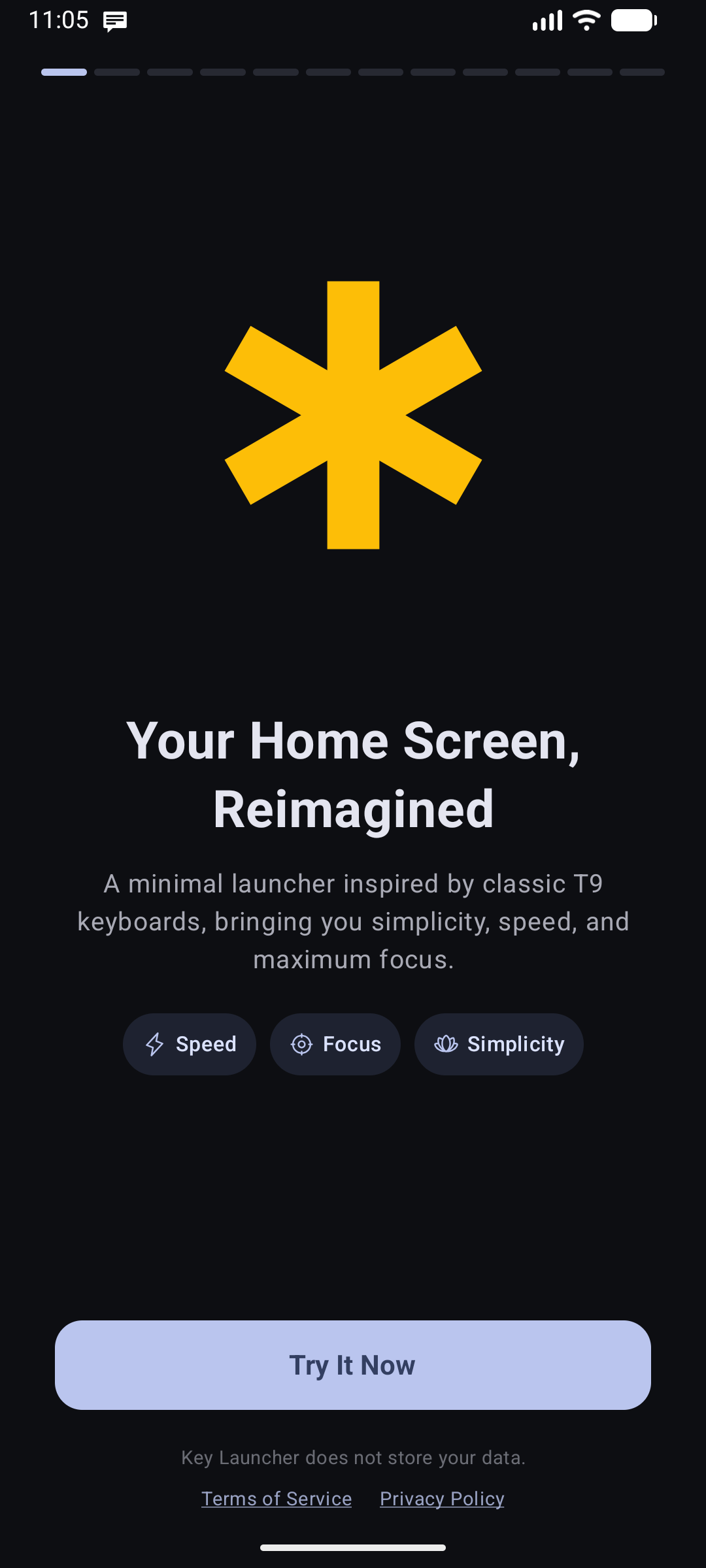
- Welcome: Introduces you to the default clean layout and the minimalist philosophy with the iconic 6-petal golden star.
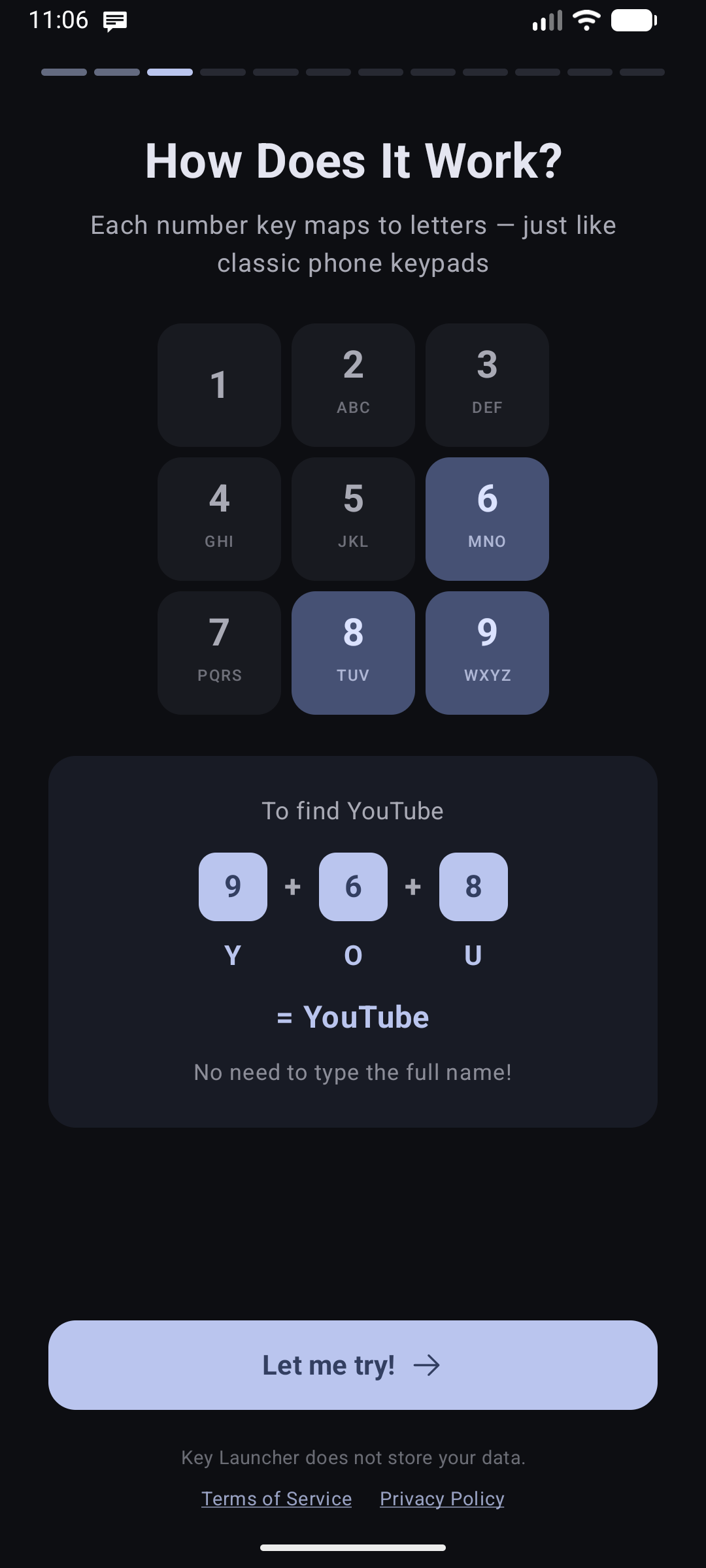
- How T9 Works: A quick animation showing how the classic physical 9-key pad is used to type text (e.g. typing
9-6-8forY-O-Ufinds YouTube).
- Interactive T9 Demo: The launcher asks you to type
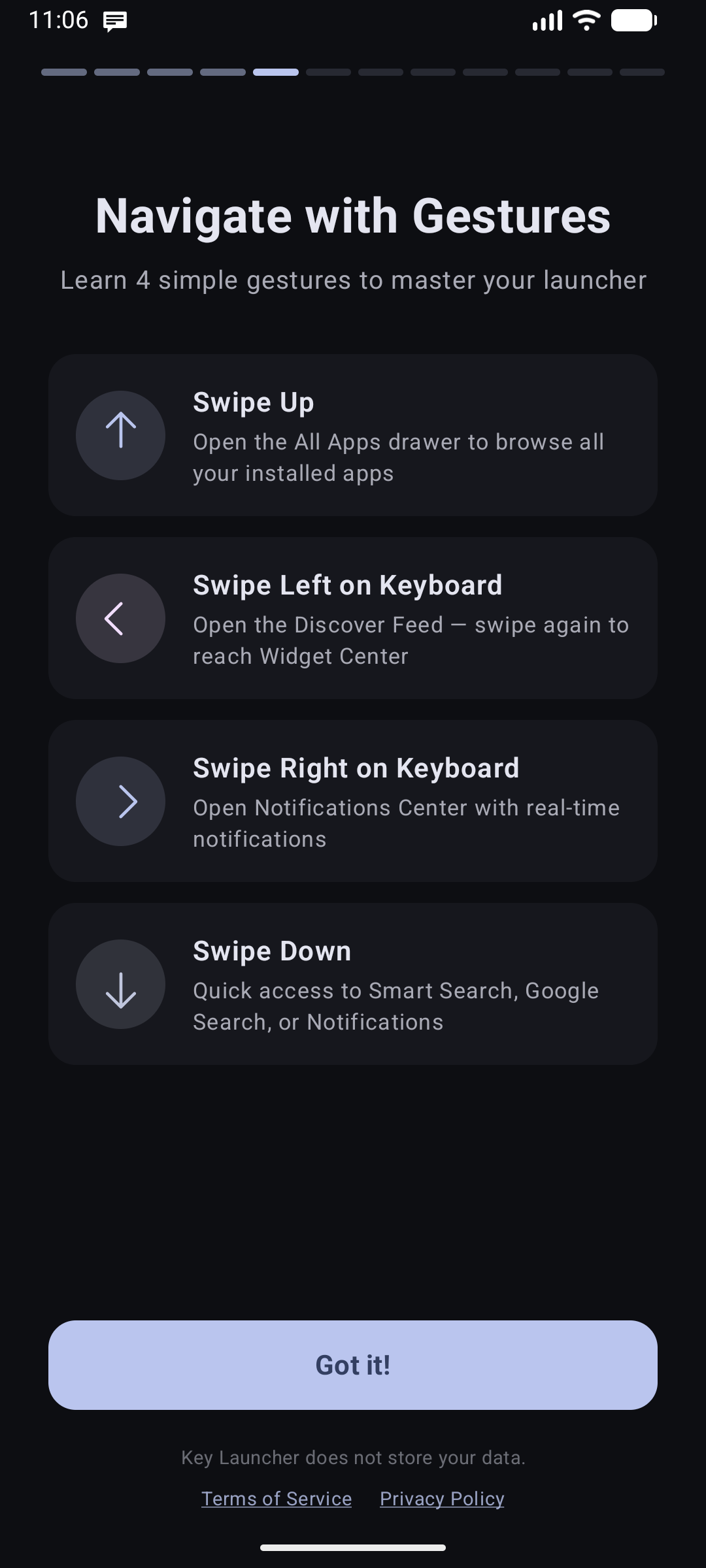
2-2-6-3-7-2to search for CAMERA, so you experience core navigation before entering the main workspace. - Gesture Tour: Shows you how to swipe sideways across the keyboard to reveal the Edge Panels, and how to swipe up to reveal the full application list. On a fresh install the defaults are swipe left → Discover Feed (swipe again to reach Widget Center), swipe right → Notification Center, and swipe down → Smart Search. All of it is rearrangeable later in Position Management.
- Feature Showcase: A guided overview of the headline features (Focus Mode, Widget Center, Discover Feed, and more).
- Plans (Paywall): Presents the Pro plans and your free trial. This step is skippable — you can continue with the free experience and upgrade later. See Pro & Free Trial.
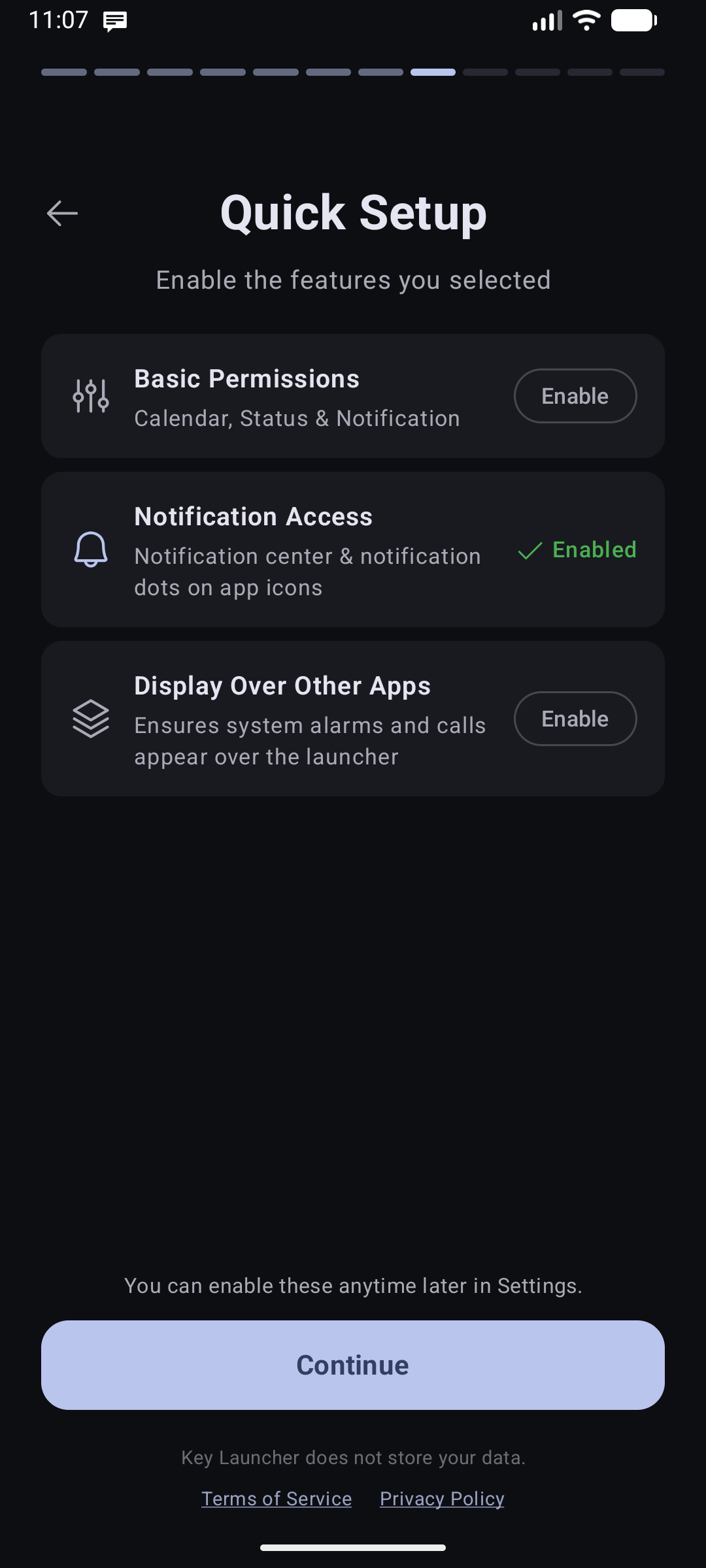
- Feature Selection & Permissions: Choose which optional features you want enabled out of the box and grant necessary permissions.
- Feature Setup: Fine-tune the selected features — for example, which Edge Panel is assigned to each side.
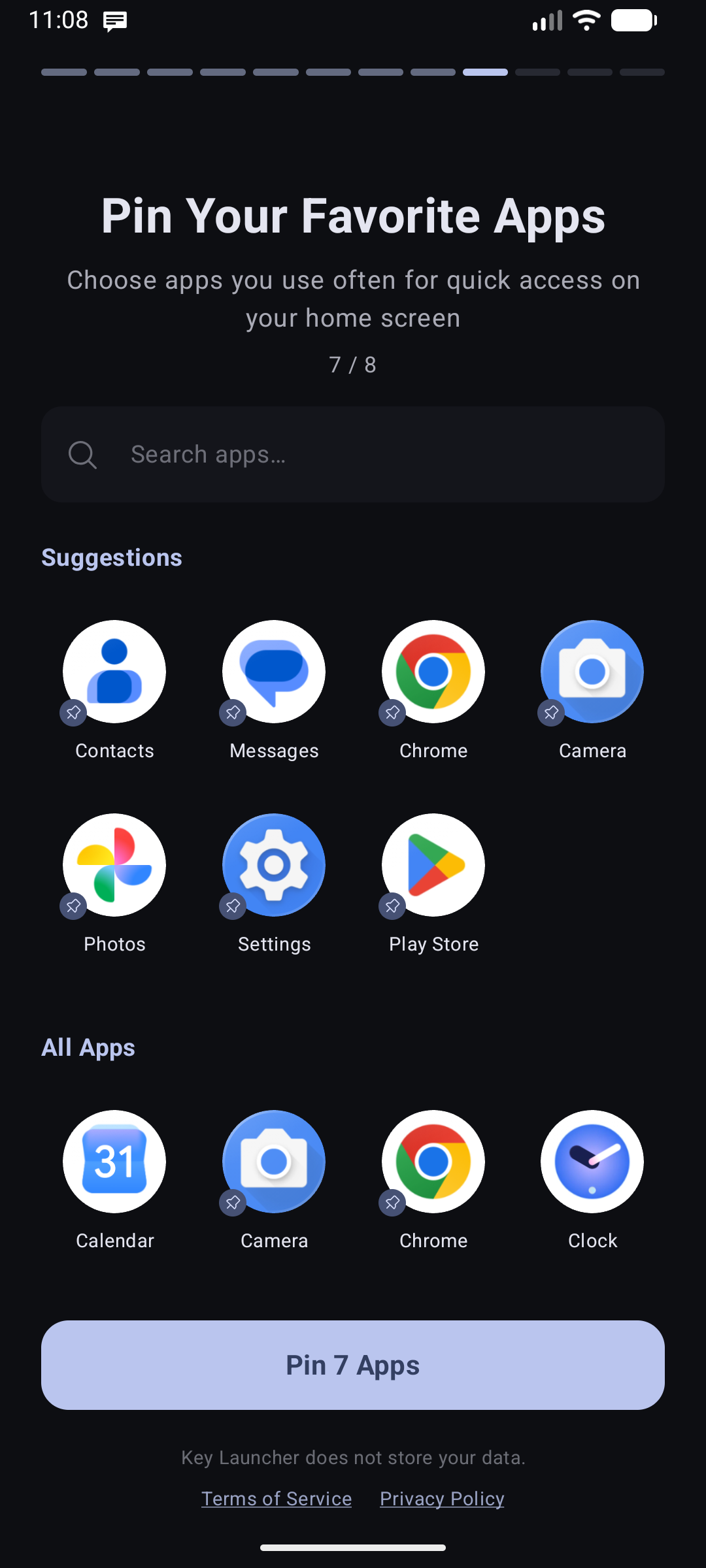
- App Selection: Pick the apps you want pinned to your home screen grid right away.
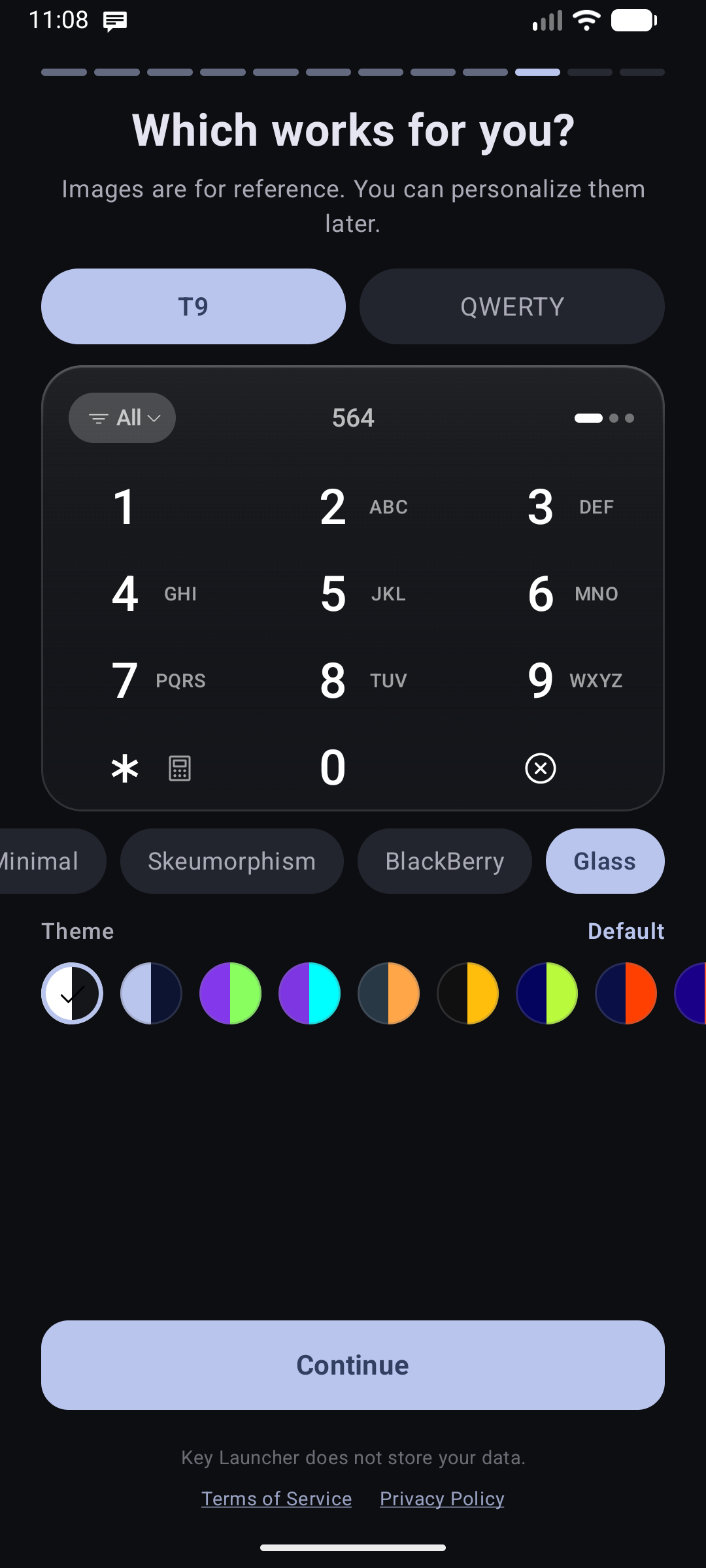
- Keyboard Style: Choose your preferred keyboard surface theme (Minimalism, Skeuomorphism, BlackBerry, or Glass).
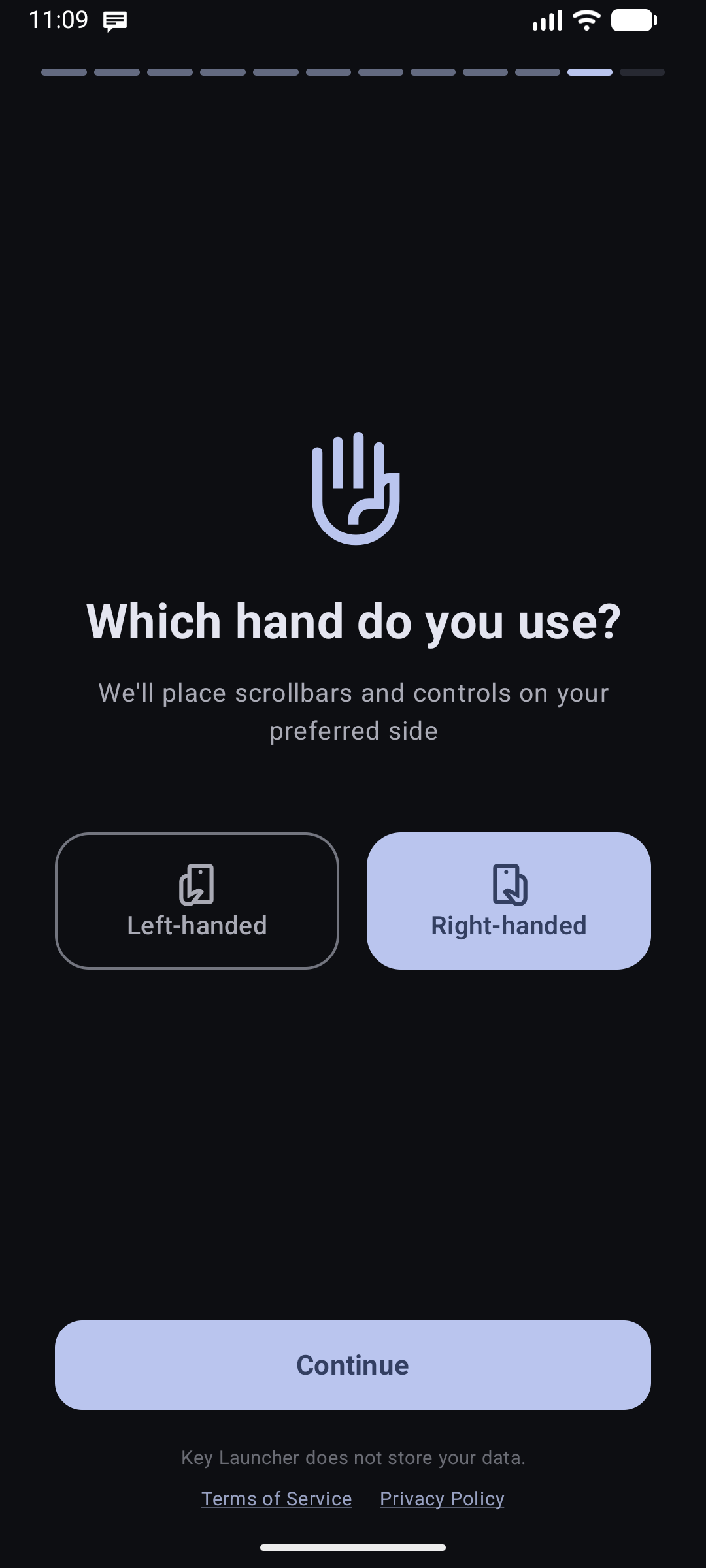
- Handedness & Layout: Tell the launcher whether you are left- or right-handed so gestures and panels favor your dominant thumb.
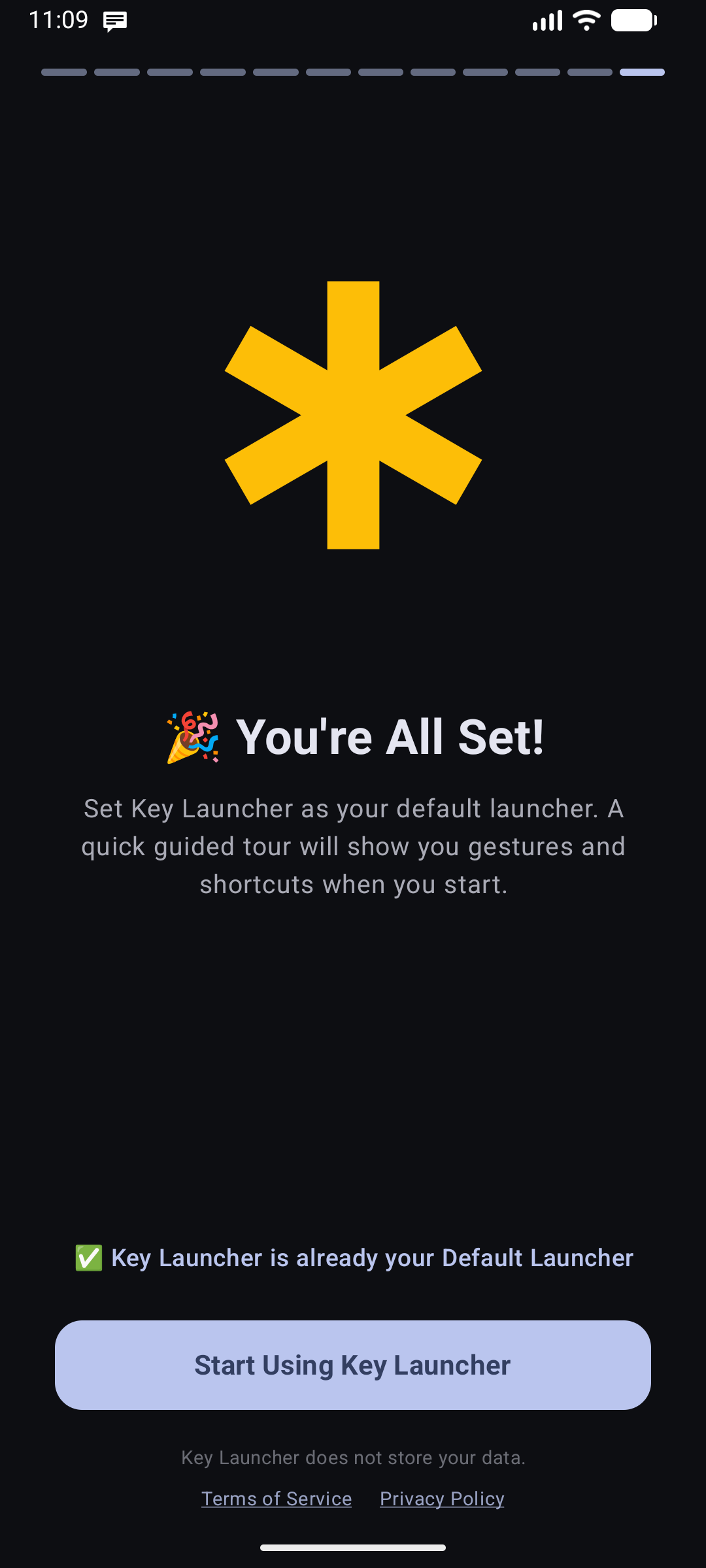
- Completion: Confirms setup is finished and drops you onto your new home screen.
Permissions (notifications, location, accessibility, contacts, etc.) are not requested in a single up-front wall. Instead, Key Launcher asks for each one lazily and in-context — only the first time you use the feature that needs it. See Essential System Permissions.
Setting Key Launcher as the Default Launcher
By default, pressing the Home button returns you to your phone's old launcher. Key Launcher reminds you about this with a prominent banner at the top of its Settings screen.
Quickest method:
- Long-press any empty area of the home screen to open Settings.
- Tap the "Set Key Launcher as default" banner at the top.
- The system dialog appears — select Key Launcher and confirm.
On Android 10 and above, this uses Android's Role system and shows a system picker dialog. On Android 9 and below, it opens your system's Default Apps settings page where you select Home App manually.
Manual method (if needed):
- Open your phone's system Settings app.
- Search for Default Apps or Home App (Vietnamese: Màn hình chính).
- Tap Home App and choose Key Launcher.
Redoing the Onboarding or Gesture Tour
Long-press any empty area to open Settings, go to the More tab, and scroll to the Tutorials section:
- Re-watch Onboarding — Replays the full 12-page setup flow from the beginning.
- Re-watch Guided Tour — Replays the gesture guide overlay (swipe directions, edge panels) without resetting your configuration.