Fonts & Language
Key Launcher's interface font and display language are both configured from Settings → General → General Settings.
Launcher Typeface
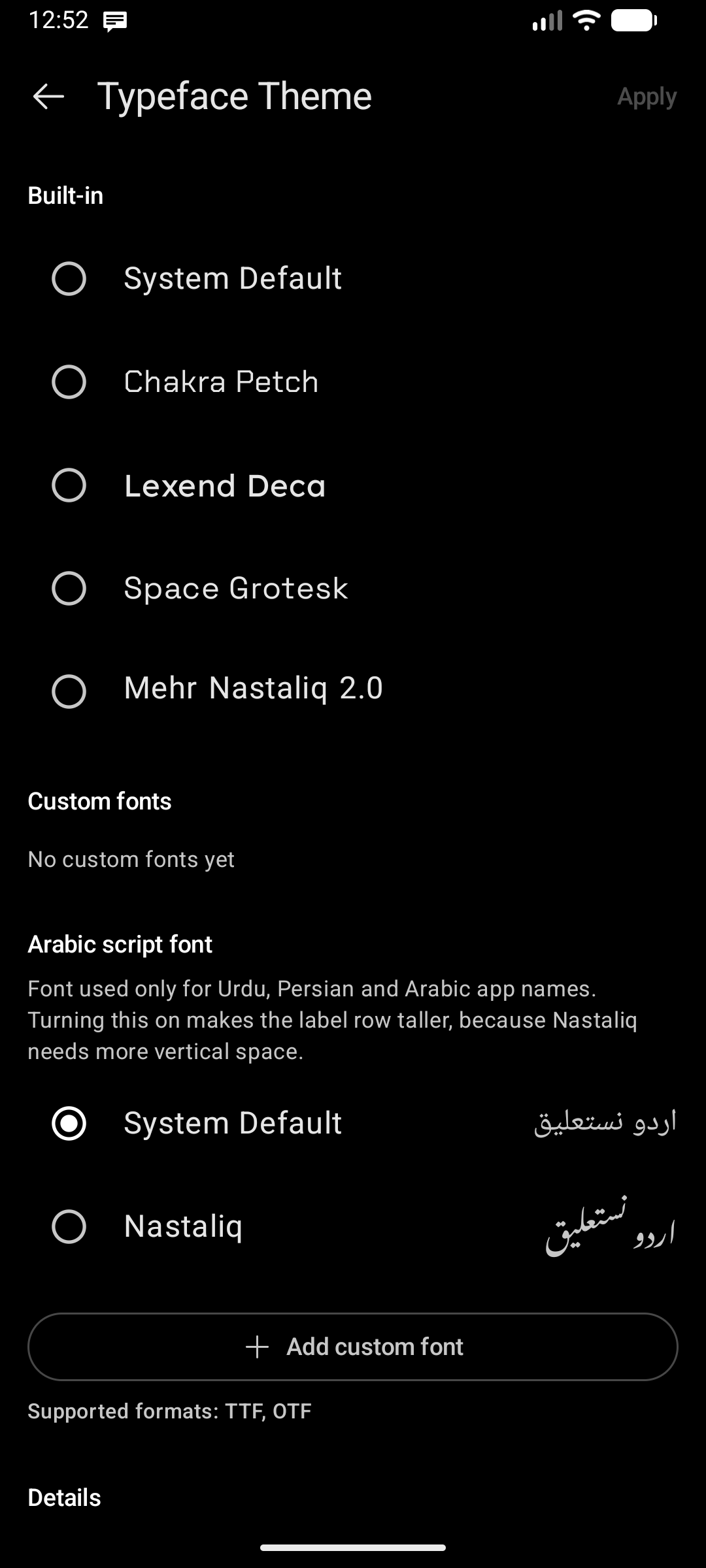
Tap Launcher Typeface (labelled Typeface Theme inside the screen) to open the font manager. The current font name is shown under the row.
Built-in fonts
Four typefaces ship with the launcher and are free to use:
| Font | Notes |
|---|---|
| System Default | Follows your device's system font |
| Chakra Petch | Squared, technical look |
| Lexend Deca | Wide, high-legibility sans |
| Space Grotesk | Geometric grotesque |
Each row is rendered in its own typeface so you can preview before choosing.
Custom fonts
💎 Pro feature — uploading your own fonts requires Key Launcher Pro. It is fully available during your in-app free trial.
Under Custom fonts, tap Add custom font and pick a .ttf or .otf file from your device storage.
- The font is copied into Key Launcher's private storage, so it keeps working even if you delete or move the original file.
- Unsupported files are rejected with a message — only TTF and OTF are accepted.
- Tap the Delete () icon on a custom font to remove it. A confirmation dialog appears first.
Font weight
If the selected font is a variable font, a Font Weight slider appears pinned at the bottom of the screen, adjustable from 100 to 1000. The font list re-renders live at the chosen weight.
Static fonts (most built-in and downloaded fonts) have no weight axis, so the slider is hidden for them.
Tap Apply in the top-right corner to commit your font and weight choice.
Launcher Language
Tap Launcher Language to set the language Key Launcher's own interface uses — independent of your device's system language. Useful if you keep your phone in one language but prefer the launcher in another.
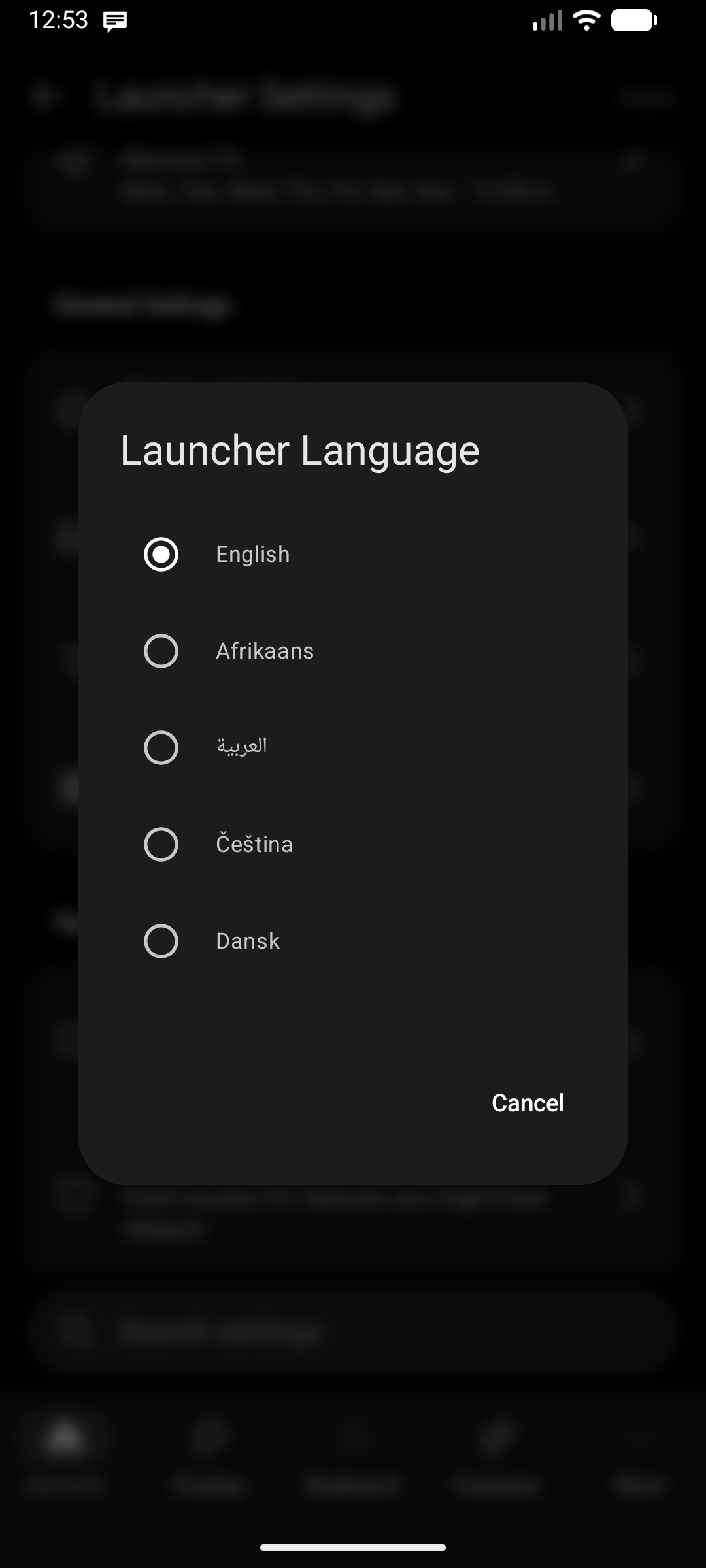
- System Default (default) — follows the device language.
- 30 languages are available, each listed under its own native name:
English · Afrikaans · العربية · Čeština · Dansk · Deutsch · Ελληνικά · Español · فارسی · Filipino · Français · עברית · हिन्दी · Italiano · 日本語 · 한국어 · Nederlands · Norsk · Português · Română · Русский · Suomi · Svenska · ไทย · Türkçe · Українська · اردو · Tiếng Việt · 简体中文 · 繁體中文
Every one of them is a complete interface translation — a language only appears here once the whole app has been translated into it.
How it applies
Selecting a language updates the Settings screens immediately as a live preview, but nothing is saved until you tap Apply. Discarding your changes (back button) leaves the previous language untouched.
After Apply, the Settings screen reloads in the new language and the home screen follows as soon as you return to it.
Right-to-left languages (العربية, فارسی, עברית, اردو) lay the interface out RTL, while the T9 keypad stays left-to-right so the number grid keeps its familiar 1-2-3 order. App names in those scripts are matched by search either way — see How the T9 Keyboard Works.
Launcher Language is about the interface. If you only want apps to be findable under another name, use Secondary search language instead — it covers a slightly wider list, including Беларуская.