Reader Mode, Translation & Read-Aloud
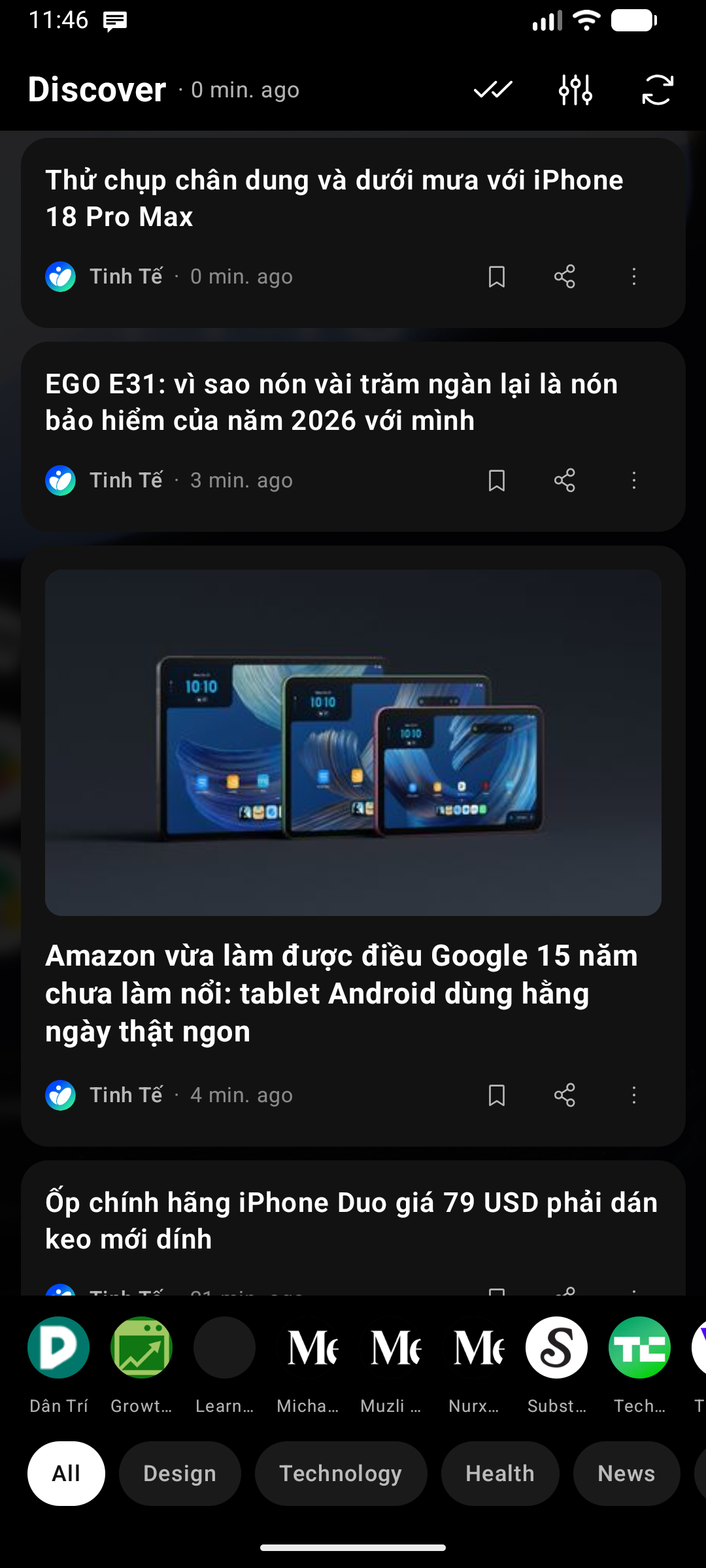
Articles from the Discover Feed can open inside Key Launcher in a clean Reader view instead of the browser: the article text, no menus, no cookie banners, no ads — and because the launcher has the actual text, it can also translate it and read it out loud.
Turning it on
Feed settings () → Reader → Open articles in Reader (on by default). Turn it off and cards open in your browser as before.
💎 Pro — Reader mode is part of Key Launcher Pro and is available throughout the in-app free trial. When the trial ends, articles simply open in the browser again; your setting is remembered.
Reading
Tap a card to open the article. The Reader shows the title, the hero image and the body text, with:
| Control | Where |
|---|---|
| Back / Save / | Top bar — the overflow holds Open original, Share, Text size and Voice |
| Translate and Read aloud | Two floating buttons in the bottom-right corner |
Text is selectable, and Open original is always one tap away — including on pages the extractor cannot convert, where Reader says so instead of showing a blank page.
Translation
Tap Translate to translate the whole article in place; tap again to go back to the original. The target language and the translator are set in Feed settings → Reader → Translation.
| Translator | Notes |
|---|---|
| On-device (default) | Free and fully offline. Downloads a small language pack the first time. Translates sentence by sentence |
| Google Translate | Needs your own Google Cloud API key |
| Gemini | Best quality — translates whole paragraphs with context. Needs your own API key (free keys at aistudio.google.com) |
With a cloud translator, the article text is sent to the service you picked. Your API key is stored encrypted on the device and is deliberately left out of backups.
Read aloud
Tap Read aloud and the buttons morph into a player: play/pause, previous/next paragraph, and a Speed control. The paragraph being spoken is highlighted, and tapping any paragraph jumps to it.
Reading uses your device's text-to-speech, and Feed settings → Reader → Read aloud lets you tune it:
- Speech engine — if more than one is installed.
- Voice language and Voice — the launcher ranks the installed voices by quality and picks the best offline one by default. Pick another and Preview reads a passage from the article itself so you can compare. Voices that need internet are labelled.
- Speed.
Reading stops when you leave the Reader — nothing keeps talking in the background. If you translate mid-article, the voice follows the translation from the paragraph you were on.
Text-to-speech has no true pause, so resuming restarts the current paragraph — which is why progress is tracked by paragraph rather than by word.