Widget Center
The Widget Center is a dedicated side-drawer panel that displays your Android app widgets in a clean, scrollable grid layout. Keeping widgets off your main home screen helps maintain a minimal aesthetic while keeping information accessible with a single swipe.
Accessing the Widget Center
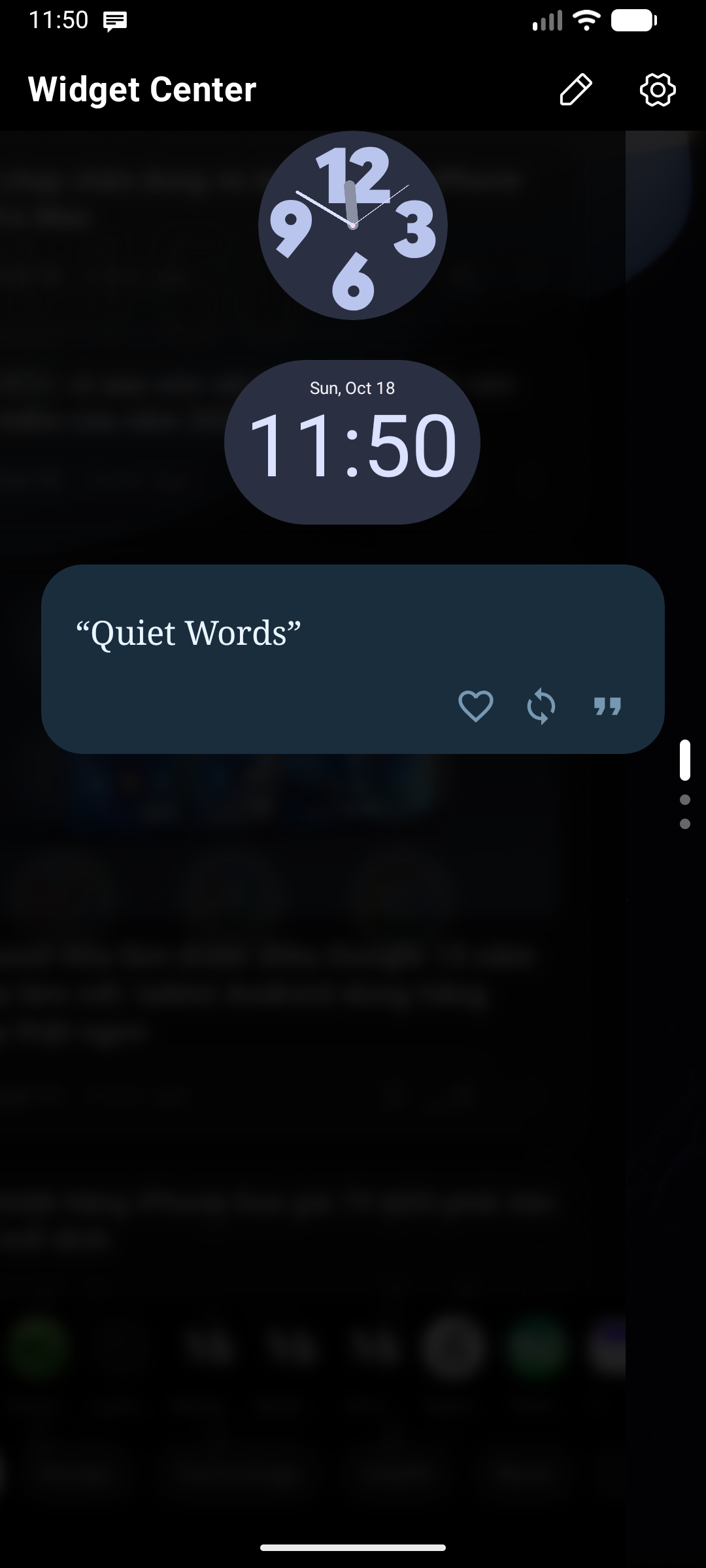
- Open: Swipe across the keyboard toward the edge where Widget Center is assigned (see Position Config).
- Dismiss: Swipe the panel back toward the edge, or tap the dimmed background area.
If you have set up a panel chain in Position Config, swiping inward from the Widget Center opens the next panel in the chain. Swipe back toward the edge to return.
Dual Widget Panels (Widget Center 1 & 2)
Key Launcher supports two independent Widget Centers:
- In Position Config, you can assign Widget Center to one edge (e.g., Left swipe for personal widgets) and Widget Center 2 to the opposite edge (e.g., Right swipe for work or stock trackers).
- Each panel maintains its own separate widget inventory, custom layout, background styling, and column grid settings.
Managing Widgets (Edit Mode)
To customize the layout, size, and list of widgets, enter Edit Mode:
- Swipe to open the Widget Center.
- Tap the Edit () icon in the panel header. The grid background will fade in, indicating Edit Mode is active.
- To exit Edit Mode, tap the Done () icon in the panel header, or press the Back gesture/button.
Grid Layout Customizations
Within Edit Mode, you can customize each widget's footprint on the grid:
1. Adding Widgets
- Tap the Add Widget () icon in the panel header while in Edit Mode.
- Select a widget from your installed applications. Tap Allow when prompted by Android to bind the widget to Key Launcher.
💎 Free plan limit — You can add up to 3 widgets to the Widget Center on the free plan. Key Launcher Pro unlocks unlimited widgets, custom panel backgrounds, and adjustable grid columns.
2. Moving Widgets (Drag Handle)
- Tap and drag the Drag Handle () icon in the top-left corner of any widget.
- While dragging, a position indicator (e.g.,
R2 C1) displays its current row and column. - Collision resolution: If you drag a widget into an occupied space, other widgets slide downward smoothly to make room.
3. Resizing Widgets (Resize Handle)
- Tap and drag the Resize Handle () icon in the bottom-right corner of any widget.
- Drag horizontally to adjust column span, vertically to adjust row span.
4. Removing Widgets
- Tap the Delete () icon in the top-right corner of the widget tile to remove it.
Appearance & Real-Time Blur
On Android 12 and later, the Widget Center renders a fluid hardware-accelerated Backdrop Blur, allowing your wallpaper and home screen to softly blur through behind the widget cards. Configure opacity and blur strength in Settings → Widget Center.