Super Shortcuts
Super Shortcuts let you trigger any action instantly by long-pressing a key on the keyboard — no typing needed.
💎 Free plan — up to 3 Super Shortcuts. Key Launcher Pro removes this limit (included in the in-app free trial).
Keys & Slots
Keys 1–9 on the T9 keyboard each map to one Super Shortcut slot. The special keys *, 0, and # are not Super Shortcut slots — they run their own assignable long-press actions (Calculator, Super Focus, Ringer mode toggle).
Super Shortcuts must be enabled first: Settings → Keyboard → Super Shortcut () toggle.
Running one by long-press shows a short toast with its name, so you know what fired — the gesture itself gives no other clue.
On the QWERTY keyboard
With the QWERTY keyboard every letter key can hold a Super Shortcut too — G → Gmail, M → Maps — which is far easier to remember than "Gmail is on 4".
Slots follow the position of the key, not the letter: on the BlackBerry layout w e r / s d f / z x c sit on top of digits 1–9 and share those nine slots, so a shortcut you made on T9 is still under the same spot. The other 17 letters get slots of their own. Both keyboards share one set of slots — nothing is duplicated or migrated when you switch.
Hold a letter and release without moving to run its shortcut; dragging up types the key's symbol instead, and dragging away cancels.
Entering Super Shortcut Mode
The key in the bottom-left of the keyboard is the gateway to Super Shortcut mode.
- From the home screen (no query typed): tap to enter Super Shortcut Mode. The keyboard switches to a 1–9 grid showing your configured slots.
- With a query typed: the key changes to a (Save) icon. Tap it to save the current query as a Quick Query super shortcut (see below).
In Super Shortcut Mode, tap a slot to execute it, or long-press to edit or delete it. Slots pointing at an app, contact or shortcut show that item's real icon — the same one the home grid draws, icon pack and all — instead of a generic symbol.
On the QWERTY keyboard the ★ key lives on the symbol layer (?123), and Super Shortcut Mode is drawn on the QWERTY frame itself, so each slot sits exactly where its letter key was.
Creating a Super Shortcut
Method 1 — Long-press a number key on the home screen (1–9). If that slot is empty, the setup dialog opens immediately.
Method 2 — Via : tap → tap an empty slot in the 1–9 grid.
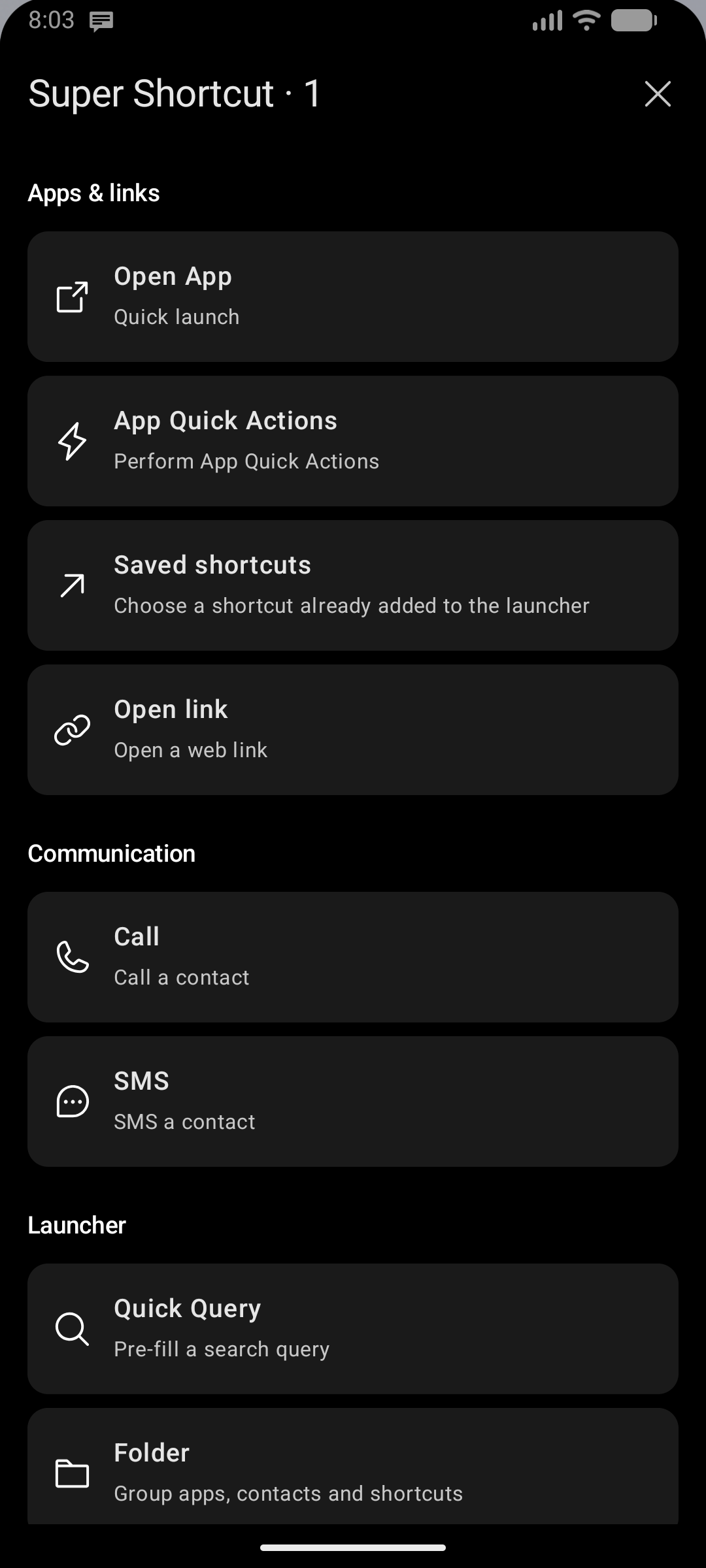
Both methods open one grouped bottom sheet where you choose what the Super Shortcut does. You can also open it by tapping an empty slot in Settings → Keyboard → Super Shortcut → Manage Super Shortcuts.
| Group | Choices, in order |
|---|---|
| Apps & links | Open App · App Quick Actions · Saved shortcuts · Open link |
| Communication | Call · SMS |
| Launcher | Quick Query · Folder · App Category · Popup Widget |
| Device & audio | Flashlight · Previous Track · Play / Pause · Next Track |
There is no catch-all “Quick Action” category. The three media commands are directly selectable, without another menu. Selecting a command configures it; it does not run until you use the saved Super Shortcut.
Back in a target picker returns to the grouped chooser; Close ends setup. Back from naming returns to the previous configuration step, or directly to the chooser for media commands and Flashlight. Unsaved folder changes still require confirmation before leaving.
Choosing a Function
Quick Query
Saves a T9 digit string as a search shortcut. When you activate the slot, the launcher pre-fills the keyboard with that query and shows the matching results instantly.
Example: save 226 (= "cam") to quickly open the Camera search result.
Special flow via 💾: type a query first, then tap ( key changes to Save), enter Super Shortcut Mode, and tap a slot — the current query is saved directly.
Apps, links, communication and device commands
A single action executed immediately when the slot is pressed. Choose from:
| Action | Description |
|---|---|
| Open App | Launch any installed app |
| Call | Directly dial a saved contact or number |
| SMS | Open an SMS thread with a contact |
| Open link | Open a web link in your browser |
| Saved shortcuts | Choose a shortcut already added to the launcher, including browser shortcuts and Quick Actions previously added to the app list. This choice appears only when a visible saved shortcut is available. |
| App Quick Actions | Browse actions supplied by apps, grouped by application. An action does not need to have been added to the app list first. Requires Key Launcher to be the default launcher; the picker explains this when unavailable. |
| Previous Track | Skip to previous media track |
| Play / Pause | Toggle media playback |
| Next Track | Skip to next media track |
| Flashlight | Toggle the camera torch on/off |
| App Category | Jump directly to a drawer category |
An App Quick Action already added to the app list can appear in both pickers: Saved shortcuts browses your saved items, while App Quick Actions browses the actions apps provide. Your existing assignments keep working; this organization does not migrate or delete them.
Folder
Groups multiple apps, contacts, and shortcuts under one slot. Pressing the slot opens a mini-overlay listing all items in the folder.
Popup Widget
Displays an Android widget as a floating overlay popup. You can add multiple widgets to a single slot as a stack — the popup cycles through them. A height slider controls how tall the popup appears.
Managing Super Shortcuts
In Super Shortcut Mode, long-press any filled slot to get an action menu:
- Edit — reopen the setup flow to change the super shortcut
- Delete — remove the super shortcut from that slot
The manager screen
Settings → Keyboard → Super Shortcut → Manage Super Shortcuts lists every slot on one screen — number keys first, then the letter keys in keyboard order — with each shortcut's real icon, its name, and what it points to. The menu on a row gives you:
| Action | What it does |
|---|---|
| Rename | Change only the name, without walking through the whole setup flow again |
| Edit details | Reopen the setup flow to change the target |
| Change position | Move it to another key. If that key is taken, the two swap — nothing is ever overwritten |
| Delete | Clear the slot |
Empty slots are listed too; tap one to create a shortcut there. A shortcut pointing at something currently hidden or in the Private Vault is still listed (marked unavailable) so you can edit or delete it rather than having it silently overwritten later.