Smart Profile
Smart Profile enables Key Launcher to automatically adapt its interface and layout based on your time of day, location, or routine (e.g., Work, Evening, Gym, Weekend).
What is Smart Profile?
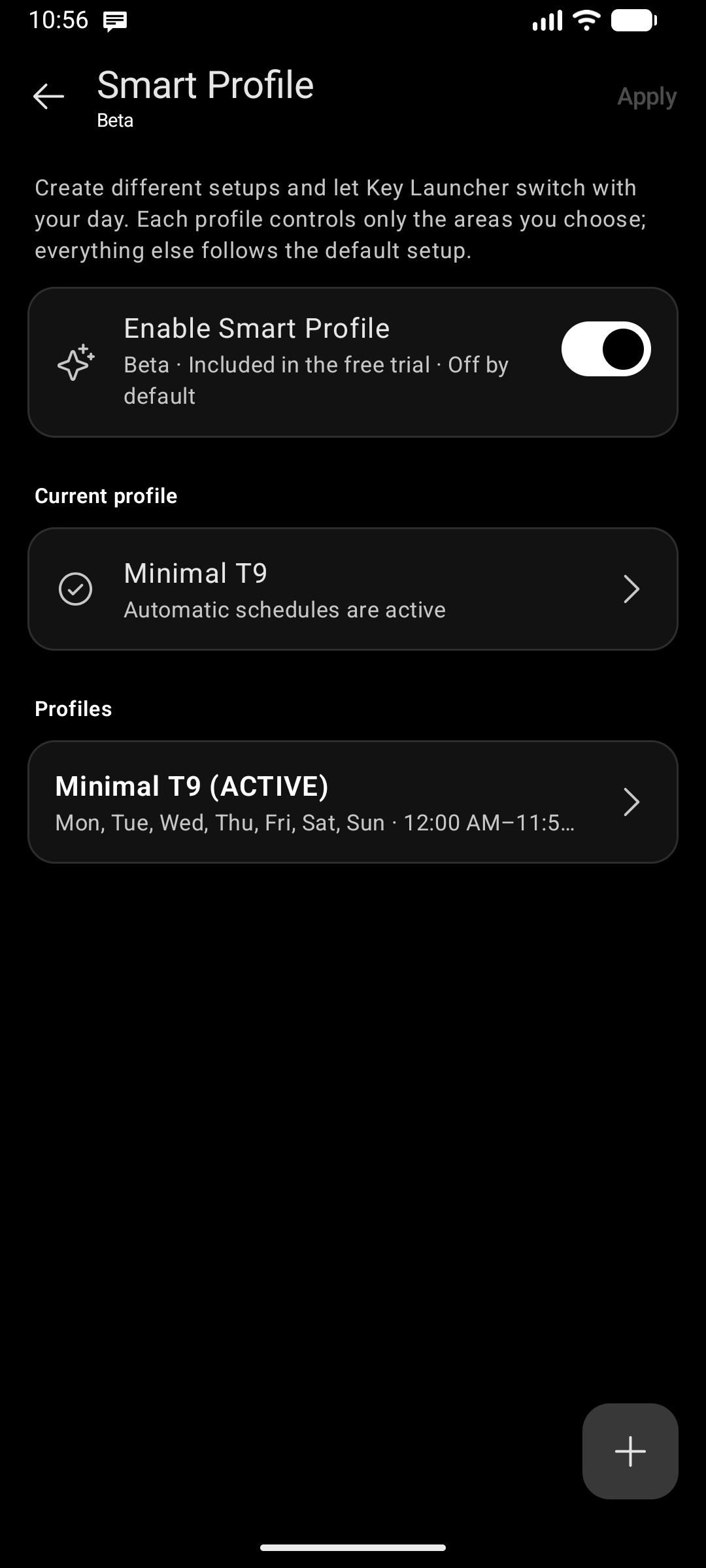
Rather than forcing you to settle on one fixed home screen, Smart Profile lets you define multiple profiles. Each profile controls only the specific areas you choose; everything else continues to follow your Default Profile.
Profile Scope
When creating or editing a profile, you select its Scope — the exact components that change when the profile becomes active:
- Home screen layout: Pinned apps, contacts, shortcuts, and folders on your home grid.
- Widget Stack: The quick-glance widgets stacked on your home screen.
- Widget Center: The full-screen widget panel accessible via edge swipe.
- Typography: Fonts, font sizes, clock styling, and label formatting.
- Keyboard: Keyboard theme, surface styling, colors, and layout preferences.
- Position Overlay: Edge panel assignments and screen position controls.
Any unselected scope area automatically inherits your Default Profile settings, ensuring a cohesive experience without redundant configuration.
Setting Up Schedules
Each profile can be scheduled to activate automatically:
- Go to Settings → Smart Profile.
- Tap Add Profile (or tap an existing profile to edit).
- Set a name (e.g., "Deep Work", "Night Mode").
- Under Schedule, choose the active days of the week (Mon – Sun) and the From / To time window.
- If the time crosses midnight, Key Launcher automatically marks it with an Ends following day indicator.
- If schedules overlap, the profile created earlier takes priority during conflict periods.
Manual Switching & Pausing
- Switch Immediately: Tap Switch now on any profile to instantly make it active.
- Pause Schedules: If you manually switch away from a running schedule, Key Launcher pauses automatic triggers temporarily so your choice isn't abruptly overridden.
- Resume Schedules: Tap Resume schedule on the Smart Profile screen to return full control to the automatic timetable.
Creating Profiles: Reuse vs. Reset
When creating a new profile, you choose how unconfigured areas start:
- Reuse Default Profile: Copies your current active setup across selected areas as a starting point.
- Reset Selected Areas: Cleans the slate, using initial default launcher settings so you can build a distraction-free space from scratch.