Creating & Managing Folders
Folders group related apps on both the home screen Pinned Grid and the All Apps drawer.
Creating Folders
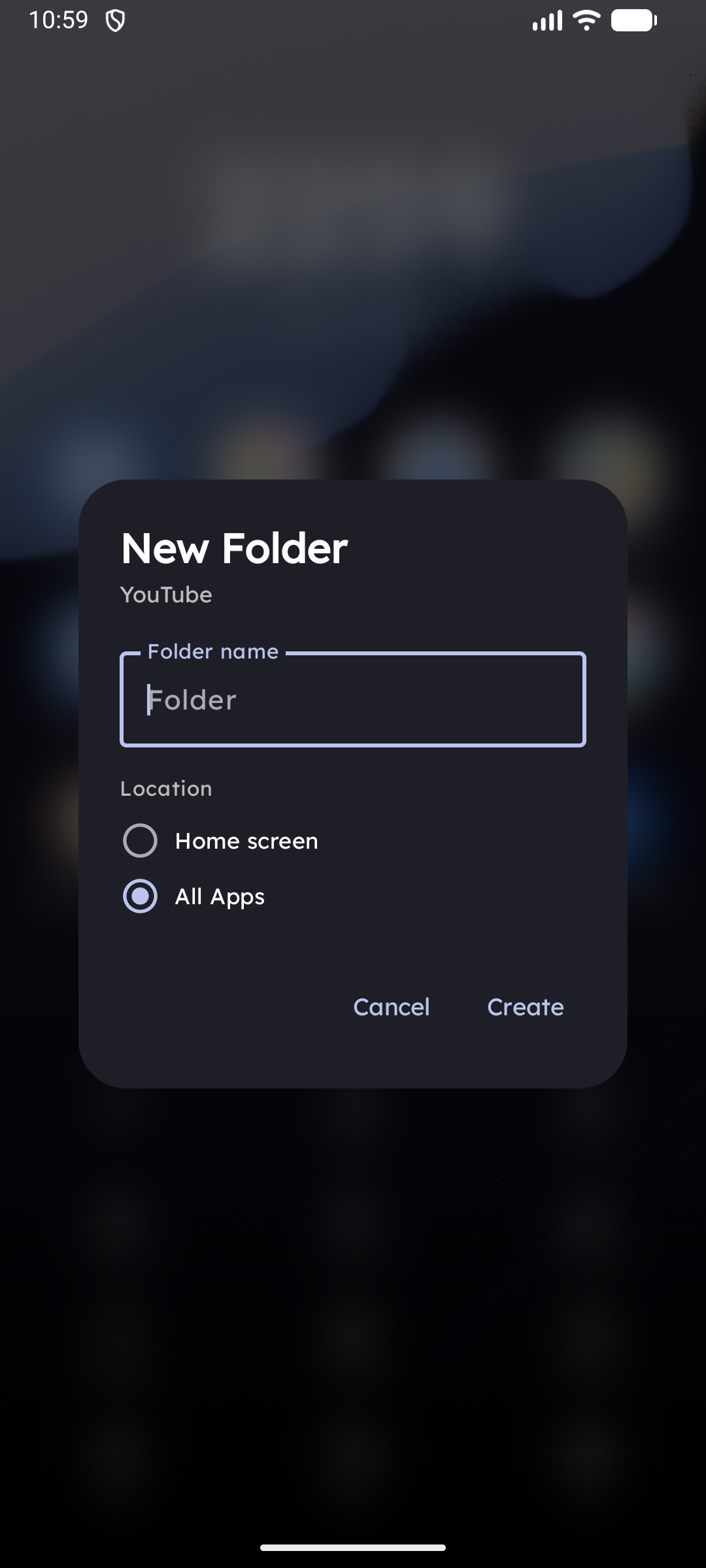
On the Pinned Grid — Hover-Merge
- Long-press an app icon until it lifts.
- Drag it directly over another icon and hold for a moment (hover-merge gesture).
- A folder preview appears — release to confirm.
Both apps move into the new folder at that grid position.
In the App Drawer — Folder Strip & FAB
- Swipe up to open the App Drawer and switch to the All tab (the Folder Strip is visible in this tab).
- A Folder Strip appears at the top of the app list.
- Start dragging any app — drop it onto an existing folder tile to add it, or onto the "+ New folder" zone at the end of the strip.
- Alternatively, tap the "+" floating action button at the bottom-right of the drawer to create a new folder immediately.
Folder Copy Mode vs Move Mode
By default, grouping apps into folders removes them from the flat alphabetical drawer list to keep things minimal.
- If you prefer to find apps both in their folders and in the master alphabetical list, turn on Settings → All Apps Drawer → Keep foldered apps in drawer (Copy Mode).
- When sorting the drawer by Update time, Install time, Last used, or Usage frequency, apps inside folders are always surfaced in the list so recent activity is never missed.
Reordering the Folder Strip
Long-press any folder tile in the strip and drag it left or right to reorder your folders.
Folder Interface
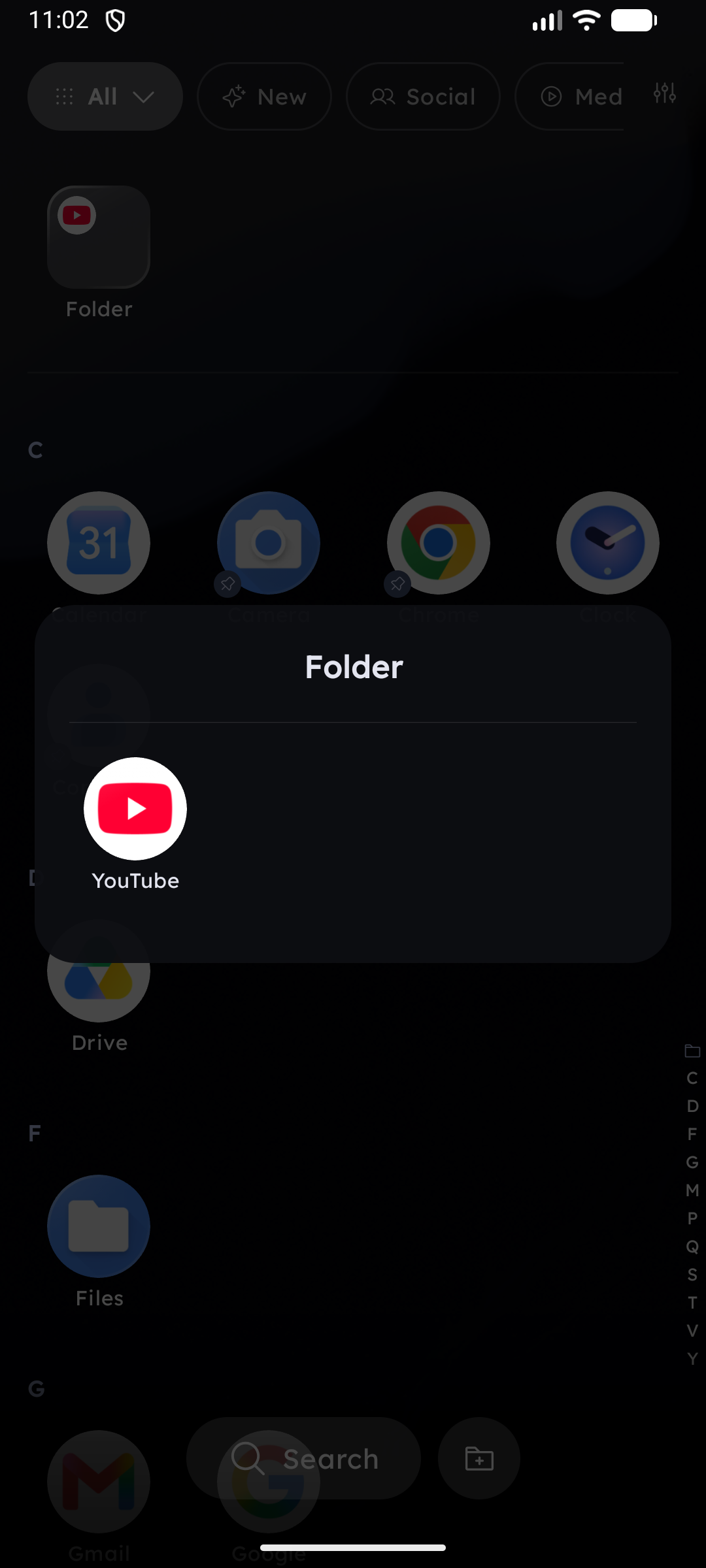
Tapping a folder opens a full-screen overlay with a Gaussian blur background. The folder's apps are shown in a scrollable grid.
Apps inside a folder that publish Quick Actions show the ▾ arrow next to their label, so you can run an app shortcut without leaving the folder — see Quick Actions.
- Rename: Long-press the folder icon (on the home screen or in the strip) and select Rename.
- Dissolve (delete folder): Long-press the folder icon and select Dissolve. Apps inside return to the grid or drawer — nothing is uninstalled. If the folder is on the Pinned Grid, items shift back into pinned positions.
- Remove an app from a folder: Open the folder overlay, long-press the app icon inside, and select Remove from folder.
Folder Badges
A folder tile carries the same badges as an app icon, in the top-right corner:
- Notification dot — the combined count of unread notifications across every app inside the folder.
- Live Green Dot — lights up with a green indicator when any app inside has been recently updated.
- NEW — shown for the first 24 hours after you create a folder.
Auto-Dissolve
If you remove items yourself and a folder drops to 1 or 0 items, it dissolves automatically and the remaining app returns to its original location.
Automatic cleanup is far more conservative: when an app inside a folder is uninstalled, Key Launcher removes only that entry and keeps the folder as long as at least one item is left — your folder name and position survive. A folder is only dissolved automatically when it ends up completely empty.
Folders survive app updates. Entries are only pruned when Android confirms the package is really gone; anything uncertain — an app in a locked Private Space, a paused work profile, an update in flight — keeps its place in the folder and reappears on its own.
Closing a Folder
While a folder is open, a chip above the keyboard shows the folder name. Where the Close control appears is configurable in Settings → Keyboard Config → Folder & Private Vault Close Button Position — either as a button on the keyboard (default) or as a ✕ icon on the chip itself.