Integrated Notification Center
Instead of pulling down the Android status bar, swipe from your configured edge to open the Notification Center — convenient on large screens where the status bar is hard to reach.
Accessing the Panel
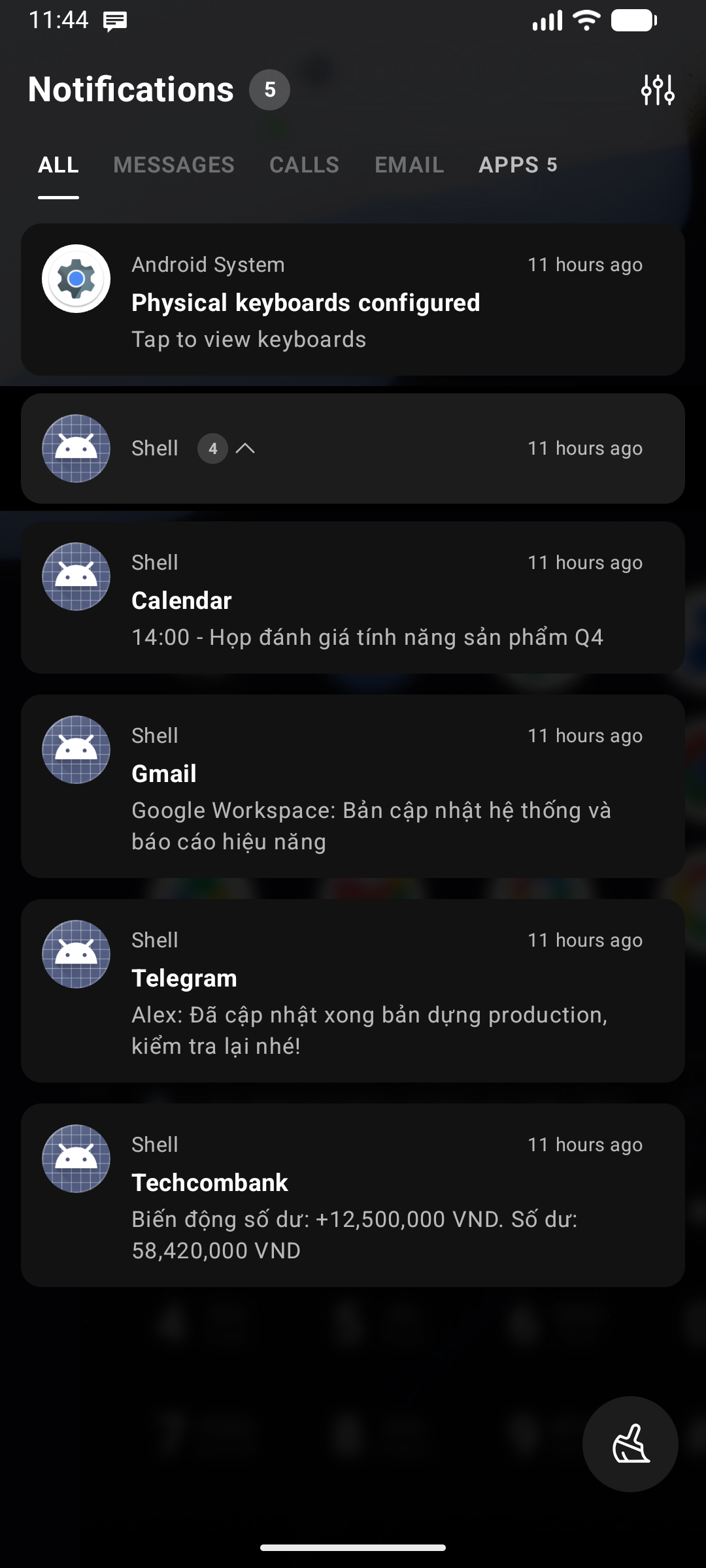
- Open: Swipe across the keyboard toward the edge where Notification Center is assigned — or tap the notifications chip in the status bar row (see Position Config).
- Dismiss: Swipe the panel back toward the edge, or tap the dimmed background area.
Features
- Widget Stack in Notification Center: Pin a scrollable, compact widget stack right inside the notification panel. Glance at weather, upcoming calendar events, or music controls without leaving the notification feed. Configure in Notification Center Settings.
- Notification List: A scrollable, themed list of your current system notifications. Long-running notifications (music, downloads, navigation) are collected under an Ongoing heading.
- Bidirectional Swipe to Dismiss: Swipe a notification card to either the left or right to dismiss it instantly.
- Tap to Open: Tap a notification to launch the relevant app.
- Inline Reply: Notifications that support replying show a Message… field with a Send button, so you can answer without leaving the panel.
- Clear All: A floating Clear all button in the bottom-right corner dismisses every clearable notification at once. It only appears when there is something to clear.
- Bidirectional Sync: Dismissing a notification in Key Launcher also removes it from the Android system shade, and vice versa.
- Profile Badges: Notifications from a Work Profile, Private Space, or a cloned/dual app are badged so you can tell duplicates apart at a glance.
Grouping & Tabs
- App Grouping: When an app posts several notifications, they are collapsed into an app group with an expand/collapse chevron and count badge.
- Notification Tabs: Group notifications into tabs by type (Conversations, Updates, Promotions) or by app categories, allowing you to focus on direct messages first while keeping utility alerts organized.
Muting a Notification
Long-press any notification to open its context menu:
| Option | What it does |
|---|---|
| Mute for a while → 30 minutes / 1 hour / 2 hours | Snoozes that notification for the chosen period. A confirmation toast tells you how long it will stay hidden |
| Hide | Hides that notification from the Notification Center only. It stays in the Android system shade |
| Turn off notifications | Opens Android's notification settings for that app — the specific channel when Key Launcher can identify it, otherwise the app-level screen |
Android does not let a notification listener switch an app's notifications off directly, which is why Turn off notifications hands you over to the system settings screen instead of toggling it in place.
Panel Settings
Tap the Settings () icon in the panel header to open Notification Center settings:
| Setting | What it does |
|---|---|
| Notification Center Widget Stack | Enable and configure a swipeable widget stack at the top of the panel |
| Hide the Ongoing section | Drops the Ongoing group (music, downloads, navigation) so only actionable alerts remain |
| Hidden notifications | View and restore notifications you previously hid with the Hide action |
| Background | Keep the default surface, pick a monochrome color, or use an image from your gallery with an automatic readability scrim |
Setup
- Swipe to open the Notification Center for the first time.
- Tap the Grant Permission button that appears in the center of the panel.
- In Android's Notification Access settings, toggle on Key Launcher.
Privacy: Key Launcher reads and displays notifications entirely on-device. No notification content is stored persistently or transmitted.
Appearance
On Android 12 and later the panel picks up your system's Material You palette, so its surfaces, cards, and accents match the wallpaper-derived colors used by the rest of your device. On supported devices, real-time background blur gives the panel a fluid, translucent layer.