Sound & Vibration
Key Launcher offers audio and tactile feedback controls to simulate typing on physical buttons and configure how deletion actions respond.
Haptic Feedback (Vibration)
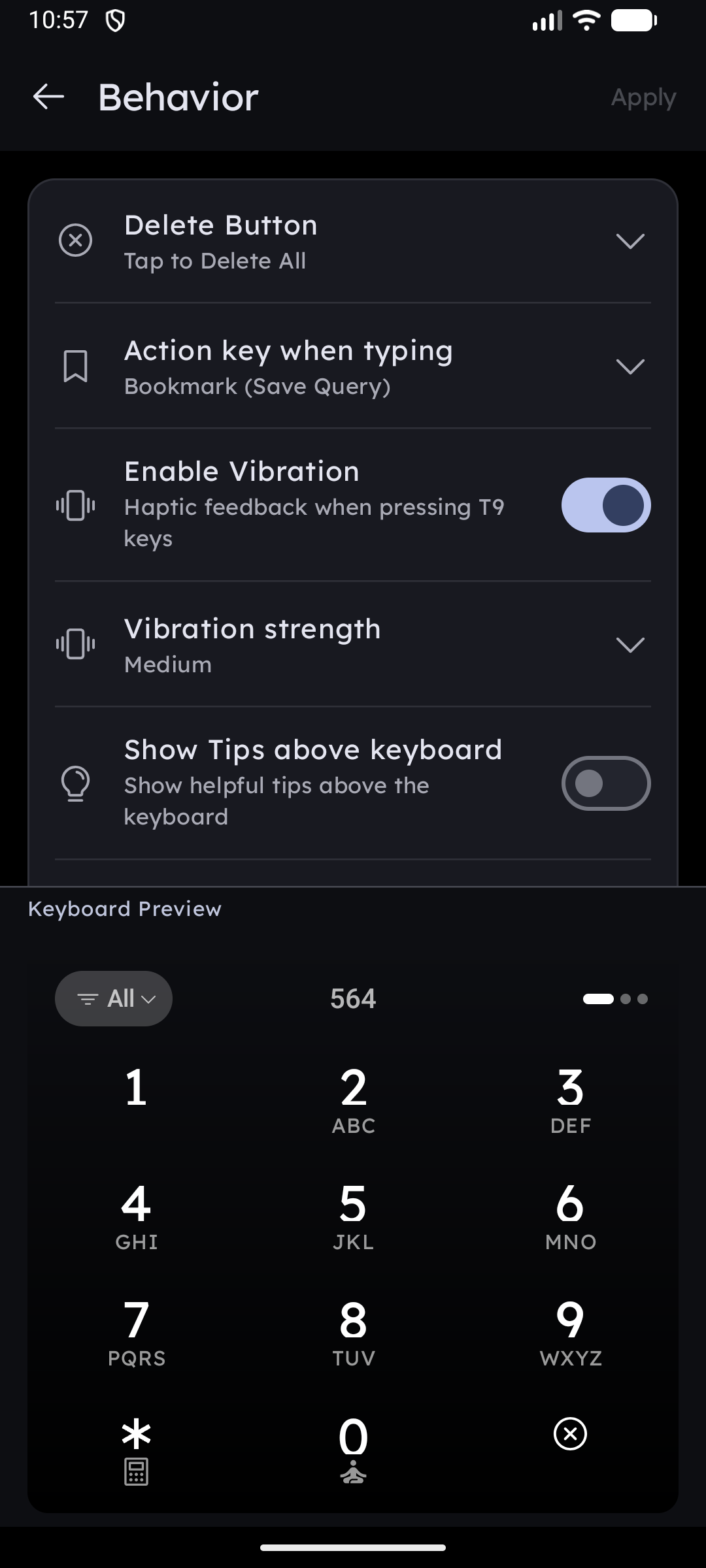
- Setting: Enable Vibration toggle.
- Behavior: When enabled, the device triggers a system haptic vibration event on every key tap.
- Tactile Feedback: Simulates the physical feel of mechanical keys, helping you type faster by confirming each keypress without looking.
- The tick fires the moment your finger touches down, not when you lift it, so fast typing feels immediate. The character itself is still committed on release, so sliding off a key still cancels it.
Vibration strength
While vibration is on, a Vibration strength row expands into three levels:
| Level | Feel |
|---|---|
| Light | The old, barely-there tick |
| Medium (default) | A firmer click — the default on new installs |
| Strong | The most pronounced click, for phones with weak motors |
Tapping a level plays it immediately so you can compare. The strength applies to key taps only; long-press confirmations keep their own stronger buzz.
Key Launcher asks the system for its own keyboard-tap haptic where possible, so on phones with tuned haptics (Samsung, Pixel) the keys feel like the stock keyboard. If you switch system haptics off but keep vibration on here, the launcher falls back to its own vibration so the setting still does something.
Keyboard Sounds & Volume
- Sound Profile Selection:
- None: Completely silent typing.
- Sound 1 / Sound 2 / Sound 3: Three different audio tick styles (from crisp wood clicks to modern digital taps).
- Volume Slider:
- Appears when sound is not None.
- Adjusts the keyboard click volume from 0% to 100% relative to the system's current media volume.
- Tip: Tapping a sound profile in the settings menu triggers a preview sound at the current volume.
Folder & Private Vault Close Button Position
When a folder or the Private Vault is open, a filter chip appears above the keyboard. This setting controls where its Close control lives:
- Default: A dedicated Close button is shown on the keyboard itself (same style as closing Super Shortcut Mode).
- Inside the Chip: A small ✕ icon is shown directly on the Folder / Vault chip instead, keeping the keyboard uncluttered.
Delete Button Behavior
Configure how the backspace button behaves when typing search queries or dial codes. Key Launcher allows you to swap tap and long-press actions to fit your speed:
Option A: Tap to Delete All / Long-press to Delete Character
- Single Tap: Instantly clears the entire text field, letting you start a new search query immediately.
- Long-Press: Step-by-step deletes one character at a time as long as you hold down the button.
Option B: Tap to Delete One / Long-press to Delete All
- Single Tap: Deletes the single last typed character (standard backspace behavior).
- Long-Press: Instantly clears the entire text field.