Colors & Opacity
Configure the color scheme and transparency of your keyboard keys and background to blend in with your active theme or stand out with high-contrast custom hues.
Color Theme
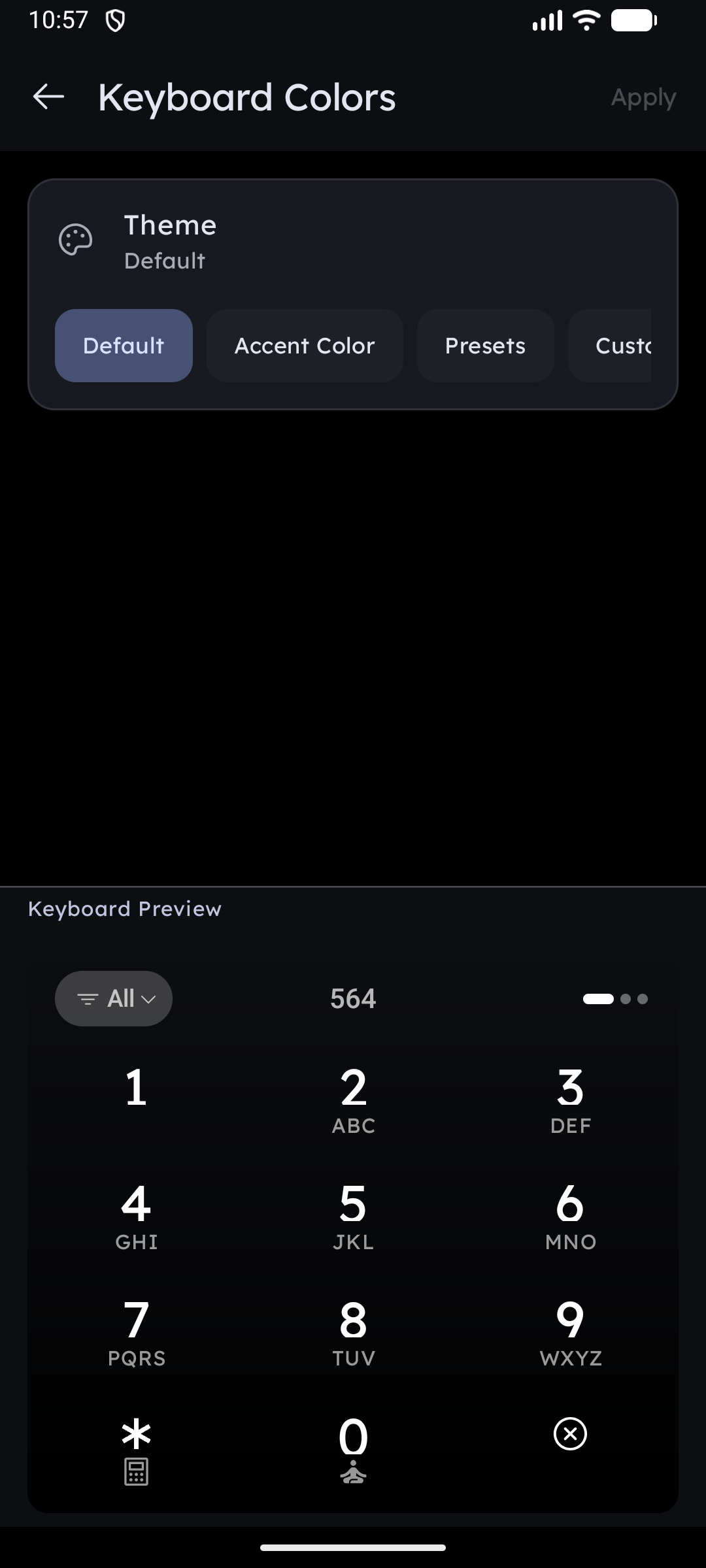
A single Theme row sets the key color and the keyboard background color together, replacing the two separate color-mode pickers:
1. Accent
- Behavior: Dynamically inherits the device's default Android system accent color or the main palette extracted from your current wallpaper.
- Best For: Creating a cohesive, unified look across the entire launcher UI.
2. Black / White
- Behavior: Automatically uses solid white or solid black depending on whether your system theme is set to Light or Dark mode.
- Best For: Clean, system-native consistency.
3. Presets
💎 Pro feature — the preset palettes require Key Launcher Pro. They are fully available during your in-app free trial.
Twelve hand-picked key + background color pairs, each named, shown as swatches you can tap to apply instantly:
Dopamine · Cyberpunk · Tokyo · Abstract · Lemonade · Coquelicot · Portland · Magenta Pop · Matcha · Espresso · Palm Amber · Dusk Violet
Below the swatches, Swap colors flips the pair — what was the key color becomes the background and vice versa — so every preset gives you two looks.
4. Custom Color
- Behavior: Unlocks full personalization of the key color and background color independently. For each you can:
- Tap one of the preset color circles extracted from popular harmonious palettes.
- Tap the Add (+) button to open the Classic Color Picker dialog, allowing you to select a free-form color with real-time preview.
- Your custom pair is kept while you browse the Presets, so switching back to Custom restores exactly the colors you had.
Selecting a custom background color that is too close to your key color may reduce key text visibility. Keep contrast in mind!
Upgrading from an older version keeps your keyboard looking exactly as it did — including mixed setups such as accent keys on a black background — until you tap the Theme row yourself.
Key Transparency (Keyboard Opacity)
The Keyboard Opacity slider controls how translucent the keyboard buttons are:
- Range: Adjusts from 20% (highly transparent/barely visible background) to 100% (fully solid, opaque).
- Usage: Low opacity allows your custom wallpaper details to peek through the keyboard area, maintaining a clean home screen aesthetic. High opacity is recommended for high-glare environments to keep labels clearly legible.