Layout & Dominant Hand
Section Heights
Settings → Display → Section Heights
The home screen is divided into three vertical sections: Quick Glance (clock + weather), App Grid, and Keyboard. Section Heights lets you resize them by dragging directly on the live home screen.
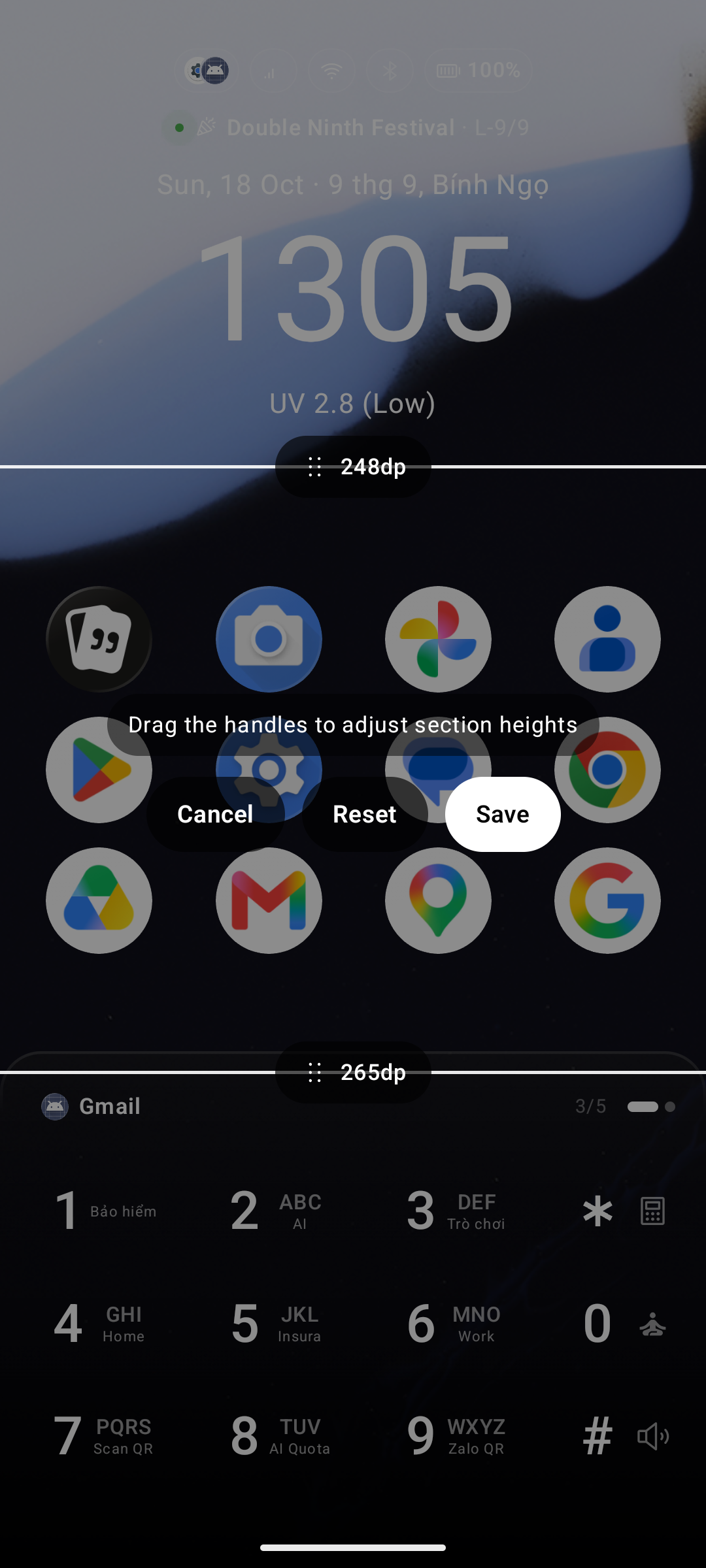
How to use
- Go to Settings → Display and tap Section Heights.
- The launcher closes Settings and opens a full-screen edit mode over the home screen.
- Two horizontal divider handles appear — one between Quick Glance and App Grid, one between App Grid and Keyboard. Each handle shows the current height of the section above it in dp.
- Drag a handle up or down to resize the adjacent sections. The layout updates in real time behind the overlay.
- Tap one of the three action buttons when done:
| Button | Effect |
|---|---|
| Save | Applies and saves the new heights |
| Reset | Restores the default heights |
| Cancel | Discards any changes |
Dominant Hand
Settings → General → Dominant Hand
Toggle between Right-handed (default) and Left-handed. This moves scrollbars and the alphabet bar to your preferred side of the screen — useful on large phones where one-handed reach matters.
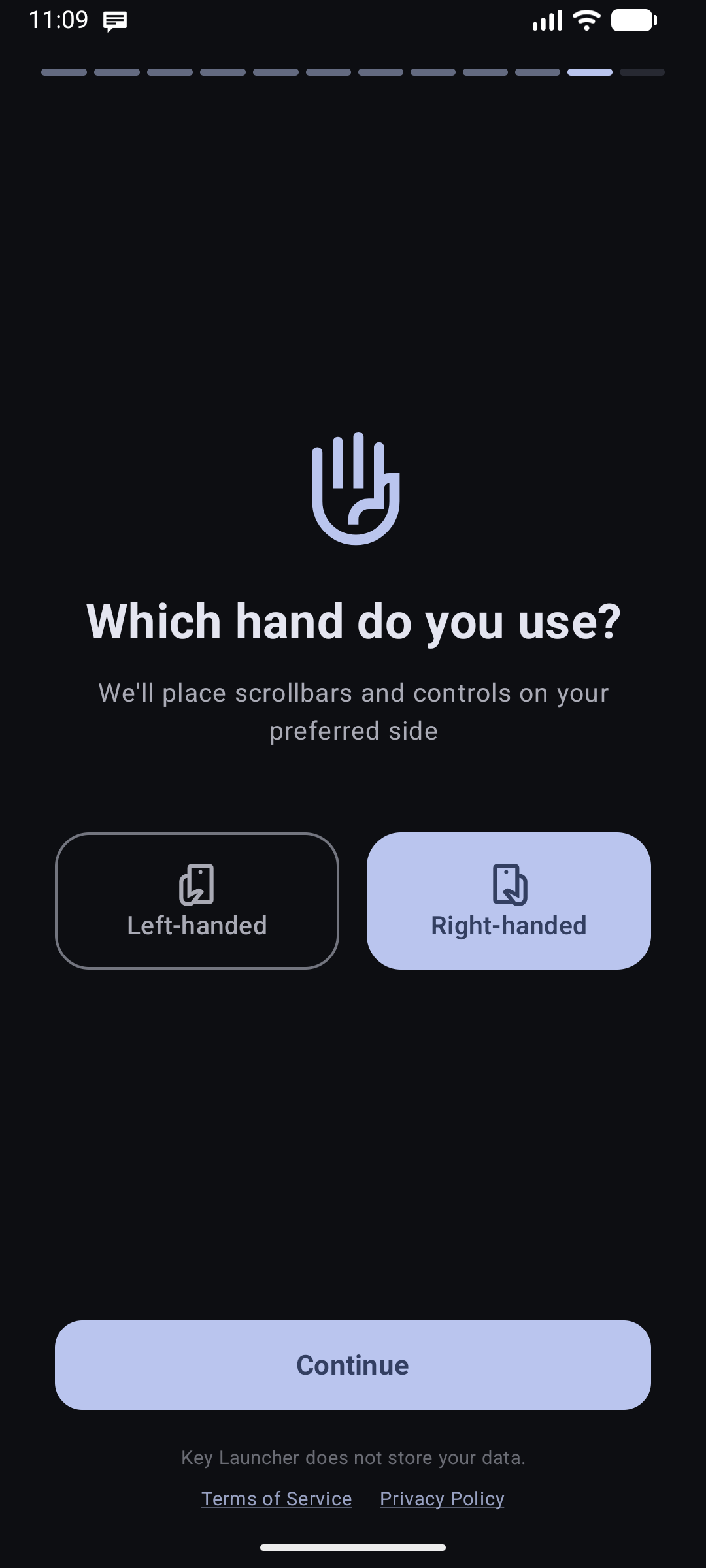
This setting only appears in Settings when the Widget Center or All Apps screen is enabled.