Position Config & Edge Gestures
Position Management controls two things: which pages appear at the top of the home screen, and which Edge Panel sits on each edge. Go to Settings → General → Screens & Sections → Position Management.
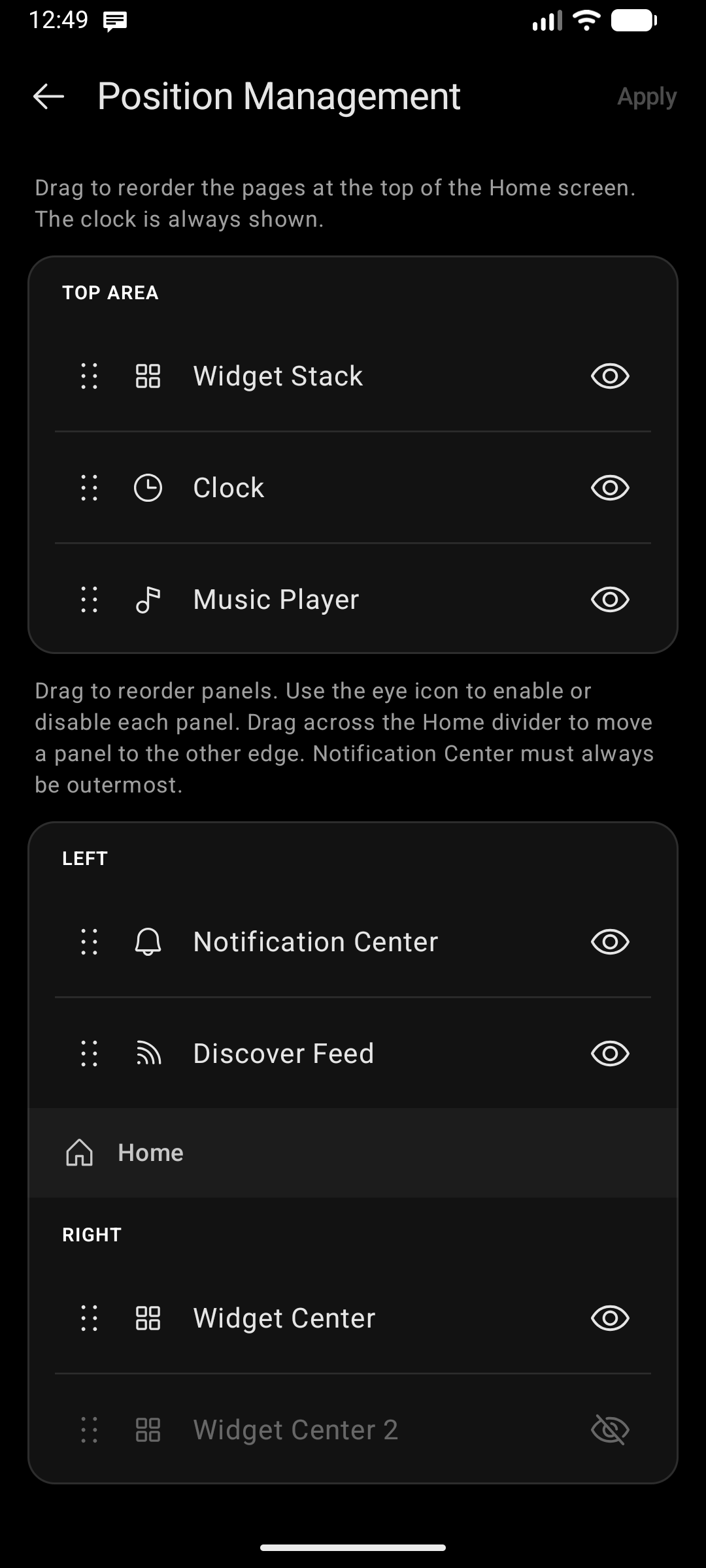
Top Area Pages
The top of the home screen is a small pager holding three pages: the Widget Stack, the Clock (with date, events, and weather), and the Music Player. Swipe sideways up there to move between them.
The Top area section at the top of Position Management lists all three:
| Control | What it does |
|---|---|
| Drag handle () | Drag a page up or down to change the order the pager swipes through |
| Visibility ( / ) | Hide a page you never use — hidden pages are skipped entirely |
- At least one page must stay visible. The eye toggle on the last visible page is locked, so you can never end up with an empty top area.
- Only one page left visible? The pager is dropped altogether — that page renders on its own, and sideways swipes in the top area fall through to your edge panels instead.
- Wide screens (foldables / tablets) use a two-page layout that honors your show/hide choices but not the ordering.
Tap Apply to save. The home screen picks up the new configuration as soon as you return to it.
The Clock, Widget Stack, and Widget Stack config screens each carry a Position & visibility link that jumps straight here.
Edge Panels
Swiping Logic
| Gesture | Opens |
|---|---|
| Swipe right across the keyboard | Left edge panel |
| Swipe left across the keyboard | Right edge panel |
Edge panels are opened by swiping across the keyboard area, not across the home screen. The home-screen swipe was removed because it fought with Android's own back gesture at the screen edges; the keyboard is excluded from that system gesture zone, so swiping there is reliable.
Two other ways in are unaffected: tapping the notifications chip in the status bar row opens the Notification Center, and a swipe up that drifts sideways now opens only the app drawer — the drag locks to the axis you started on, so one gesture can never trigger two things at once.
The Panel List
The config screen shows all three panels — Widget Center, Notification Center, and Discover Feed — in a single draggable list split by a Home divider:
- Panels above the Home divider → assigned to the Left edge.
- Panels below the Home divider → assigned to the Right edge.
Each row has two controls:
| Control | What it does |
|---|---|
| Drag handle () on the left | Drag to reorder within a section, or drag across the Home divider to move to the other edge |
| Visibility ( / ) on the right | Toggle the panel on or off without changing which edge it belongs to |
Tap Apply in the top-right corner to save your changes.
New installs start with Notification Center on the left and Discover Feed → Widget Center chained on the right. Existing setups keep whatever they were already using — upgrading never rearranges your panels.
Panel Chains (Two Panels per Edge)
You can place up to two panels on the same edge. When two panels are active on one edge:
- The first panel (higher in the list) opens when you swipe from that edge.
- The second panel opens when you swipe inward from the first panel.
- Swipe back toward the edge from the second panel to return to the first.
Drag the handle to reorder panels within a section and control which one is primary.
Notification Center Constraint
Notification Center has a special placement rule enforced automatically:
- On the Left edge: always placed first (slot 0).
- On the Right edge: always placed last.
This is because swiping sideways inside the Notification Center dismisses notifications — so it cannot have a second panel chained after it. The app repositions it automatically when you drag other panels around it.