Personalizing the Center Clock
The Quick Glance area sits at the top of the home screen and shows the clock, date, calendar events, and weather. All its settings live in one screen.
Opening Widget Config
Long-press any empty area on the home screen to open Settings, then tap Widget Config.
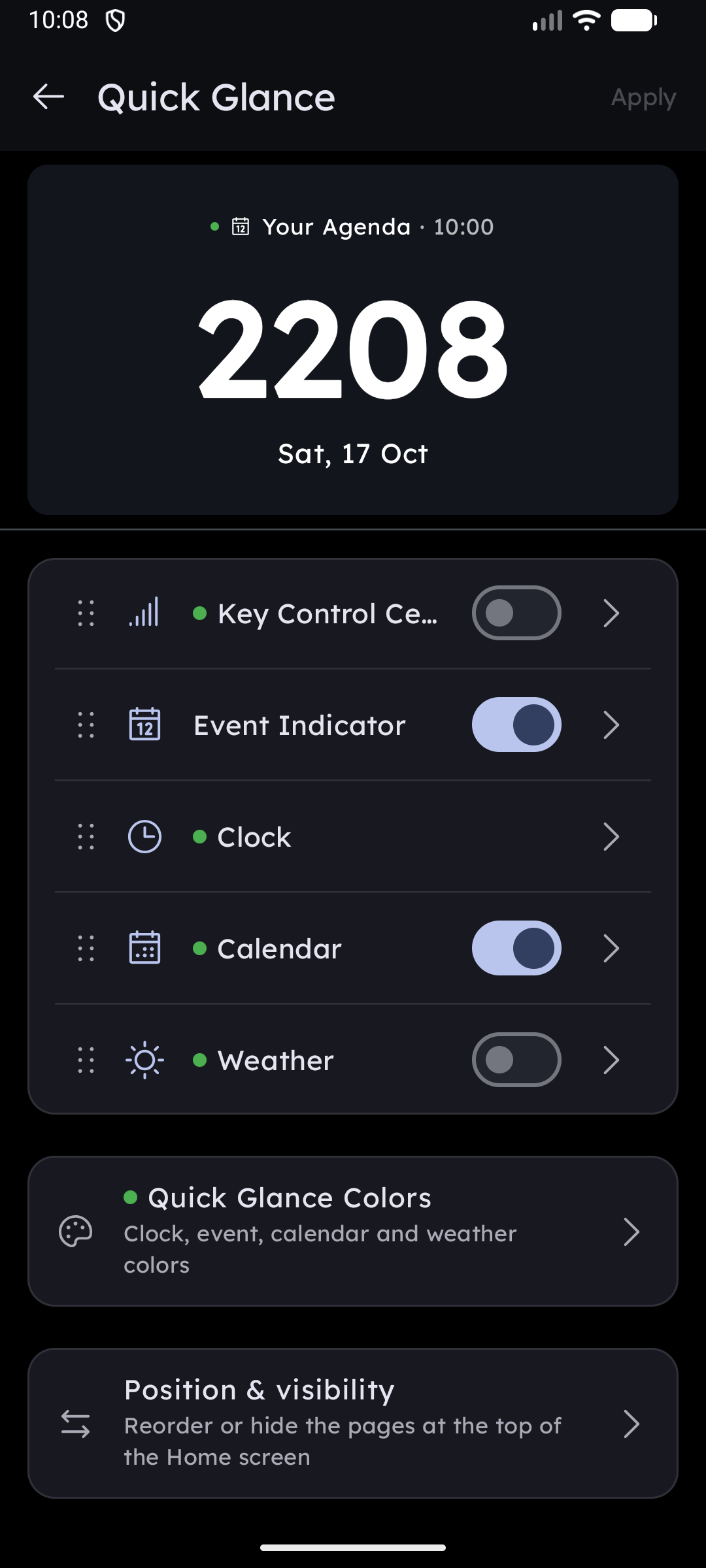
A live preview of the Quick Glance area is pinned at the top of the screen — every change is reflected immediately.
Changes do not apply to the home screen until you tap Apply in the top-right corner.
Position & visibility — a link at the bottom of this screen jumps to Position Management, where you can reorder the top-area pages or hide the clock page entirely. See Position Config → Top Area Pages.
Clock Style
Font Style
Choose a typeface for the clock display. The default font (Chillax) is free. Additional fonts require Key Launcher Pro.
Size & Weight
- Size — slider in
spunits - Weight — thickness of the strokes (not available for all fonts)
Clock Format
| Setting | Description |
|---|---|
| Time Format | Switch between 12-hour and 24-hour display |
| Hide Colon | Remove the : separator between hours and minutes for a cleaner look |
| Show AM/PM | Show or hide the AM/PM label — only visible when 12-hour format is active |
Calendar
| Setting | Description |
|---|---|
| Lunar / Alternative Calendar | Show a second calendar system below the Gregorian date |
| Calendar Type | Pick from Chinese Simplified, Chinese Traditional, Hebrew, Hijri (Civil / Kuwaiti / Saudi), Indian, Korean, Persian, Vietnamese, or Brazilian Holidays — shown when Lunar Calendar is on |
| Special Days | Highlight cultural or religious notable dates from the selected calendar — shown when Lunar Calendar is on |
| Use System Date Format | Format the date line using your device's regional date format instead of the launcher's default |
Weather
Toggle temperature, humidity, and AQI on or off individually. When any weather data is enabled, additional options appear:
- Location — automatic (uses device GPS/network location) or manual (search and pin a city)
- Data Source — Open-Meteo (no API key required) or OpenWeather + WAQI (requires API keys)
- Preferred Weather App — the app that opens when you tap the weather display on the home screen
- Temperature Unit — Celsius or Fahrenheit
Auto location requires the Location permission. See Essential System Permissions.
Status Bar
The status bar settings live in this same screen, under the Status bar section.
Hide Status Bar replaces Android's own status bar with a compact row of info pills drawn by the launcher. When it is on, the following controls appear:
| Setting | What it does |
|---|---|
| Icon rows | Each info item (time, battery, Wi-Fi, Bluetooth, and so on) has an eye toggle to show or hide it, and a drag handle on the left to reorder the row |
| Adjust position | Toggle plus a slider (0 – 100 dp) to push the pill row further down from the screen top — useful around punch-hole cameras |
| Size scale | Scales the pill row from 60% to 140% |
| Status bar color | Default, Accent, Wallpaper Tint, or a Custom color |
The live home preview at the top of the screen renders the status bar exactly as configured, so you can judge position, size, and color before applying.
Drag only from the handle on the left of an icon row — the rest of the row stays free so you can scroll the page normally.
This section replaces the old standalone Status Bar Config screen, and the duplicate Hide Status Bar row that used to sit in the General tab.
Quick Glance Colors
Controls the text color of all Quick Glance elements (clock, calendar, weather).
Clock Font Color
| Mode | Description |
|---|---|
| Default | Follows the launcher's base text color |
| Accent | Uses the wallpaper-extracted accent color |
| Wallpaper Tint | Picks a tint color directly from the current wallpaper |
| Custom | Pick any color from a color picker |
Share Colors
When Share Colors is on, a single color setting controls the clock, calendar, and weather text together.
When Share Colors is off, each element (Events, Calendar date, Weather) gets its own independent color picker with the same four modes (Default / Accent / Wallpaper Tint / Custom).