Size & Layout
Adjust the physical footprint, padding, font scaling, swipe gestures, and key organization of the keyboard to optimize for one-handed usage, thumb reach, and screen real estate.
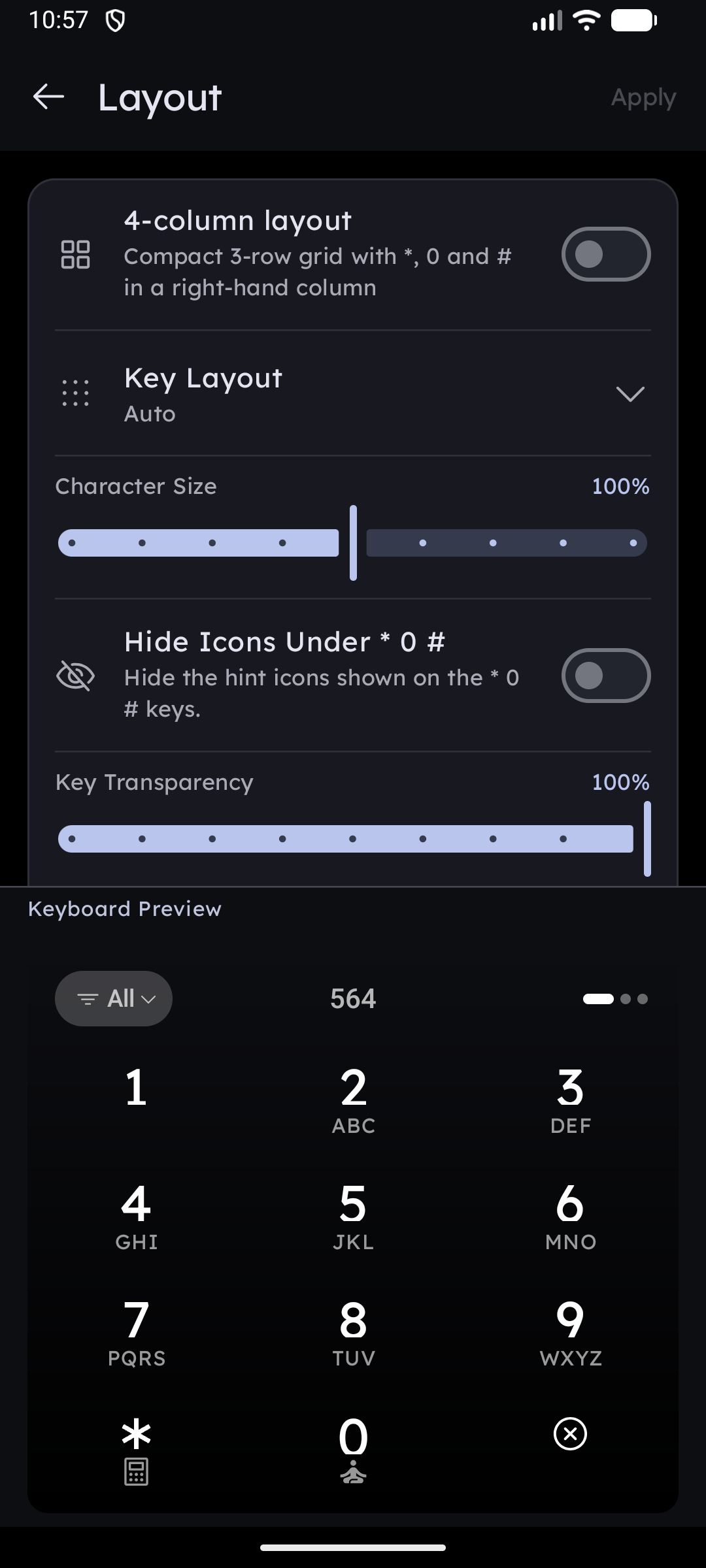
The 4-column layout, key layout mode and alternative characters describe the T9 grid, so they are hidden while QWERTY is the selected keyboard type. Your saved values are kept for when you switch back.
Swipe to Collapse Keyboard
Want more space to enjoy your wallpaper or view your widget stack?
- Go to Settings → Keyboard → Size & Layout → Swipe down to collapse keyboard.
- Gesture: Simply swipe down on the keyboard's top bar. The keyboard glides down smoothly, tucking itself out of view while the home grid shifts down naturally.
- Restore: Tap the remaining slim bar or swipe up from the bottom to pop the keyboard back open instantly.
App Notifications on Keyboard Top Bar
Turn your keyboard header into a discreet notification ticker:
- In Settings → Keyboard → Size & Layout → App notifications on keyboard.
- Incoming messages and app alerts scroll across the top bar instead of showing rotating tips.
- Tap: Expands an interactive Peek card to read the message or reply.
- Long-press: Opens the full Notification Center.
- Select Apps: Tap Choose apps to select exactly which chat or utility apps can display ticker alerts on your keyboard.
4-Column Layout
The 4-column layout toggle rearranges the keypad from the standard 3×4 grid into a compact 3-row grid with the special keys stacked in a right-hand column:
| Standard (3 × 4) | 4-column (4 × 3) |
|---|---|
1 2 3 | 1 2 3 * |
4 5 6 | 4 5 6 0 |
7 8 9 | 7 8 9 # |
* 0 # | — |
Every key keeps its behavior — * still holds Super Shortcut / Calculator, # still handles the Private Vault and delete/close — the grid is simply one row shorter.
Keyboard Layout Modes
The Keyboard Layout option determines how letters and sub-labels are positioned on each key relative to the main numbers:
- Auto: The launcher automatically adjusts key layout ratios based on your device screen aspect ratio and resolution.
- Side-by-side: Organizes sub-character labels (like ABC, DEF) next to the primary number on the key tile.
- Stacked: Places sub-character labels directly above or below the primary number, making numbers larger and more centered.
Font Scaling (Character Size)
- Setting: Keyboard Font Scale slider.
- Range: Adjusts the size of the characters on the key faces from 60% to 140% of their default size.
Show Alternative Characters
- Setting: Show Alternative Characters toggle.
- Behavior: When enabled, the number keys print the letters of your native script underneath the digits — Cyrillic, Greek, Arabic, Hebrew, Thai, Devanagari, Hangul, and more.
Hide Icons Under * 0
- Setting: Hide Icons Under * 0 # toggle.
- Behavior: Strips the hint icons under
*,0, and#for a purely numeric, clutter-free keypad look.