Widget Stack
The Widget Stack is a vertical pager in the Quick Glance area that holds up to 4 Android widgets. Swipe up or down on the stack to flip between them. A column of small dots on the left edge indicates your position when more than one widget is loaded.
The Free plan shows up to 2 widgets in the shared Home and Notification Center stack. Pro and the in-app trial unlock slots 3 and 4. If the trial expires, those extra widgets stay saved and become available again with Pro.
Where It Appears
The Widget Stack occupies the left half of the Quick Glance swipe page (swipe left from the clock). On wide-screen / foldable devices it shares the row with the Music Player; on standard phones it gets a full-width page of its own.
When the stack is empty, the area shows a + placeholder. Tap it to open Widget Stack Config and add the first widget.
Opening Widget Stack Config
Long-press anywhere on the Widget Stack area to open Widget Stack Config directly.
Alternatively: Settings → Display → Widget Stack.
Managing Widgets in Config
The config screen shows up to 4 numbered slots. Each filled slot renders a live preview of that widget.
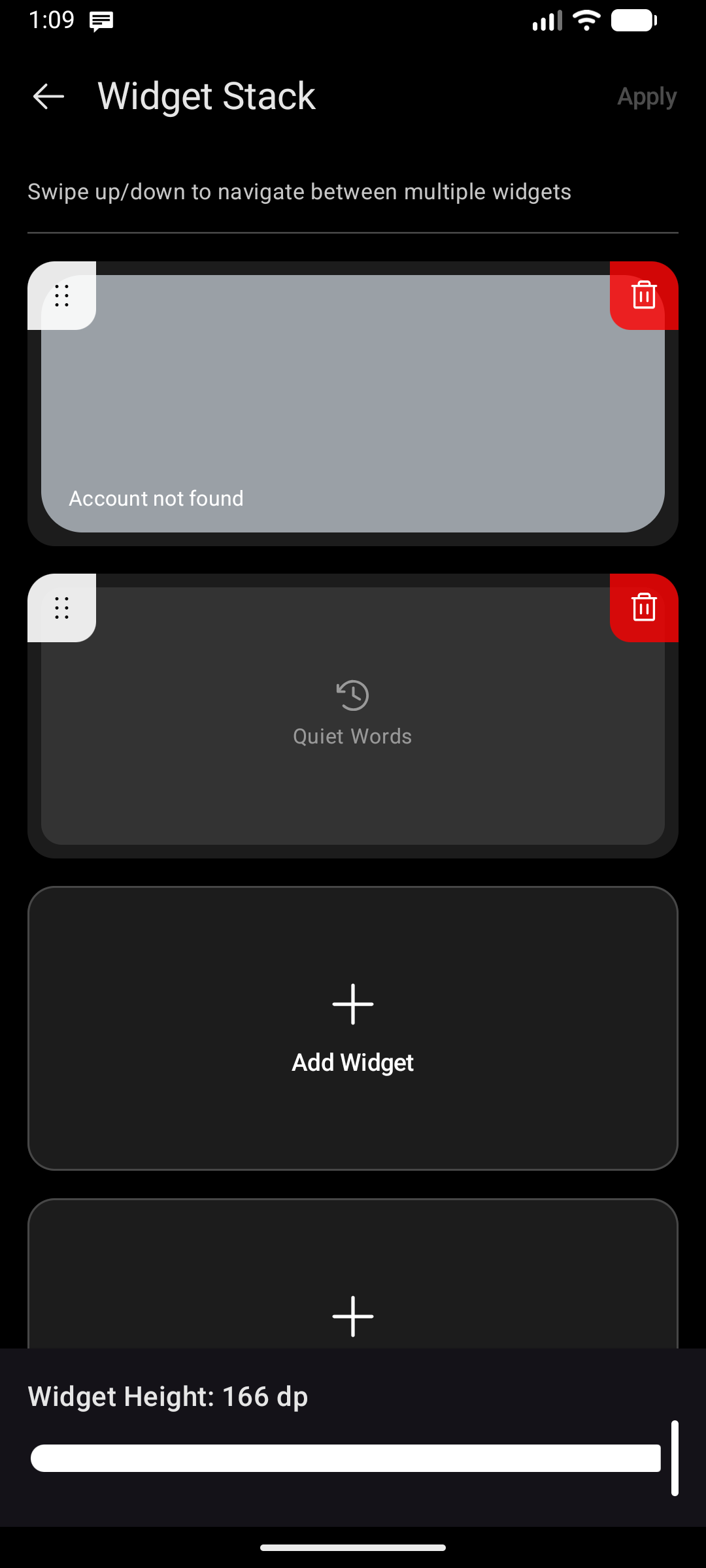
| Action | How |
|---|---|
| Add a widget | Tap the + button on an empty slot — opens the system widget picker |
| Remove a widget | Tap the Delete () icon on the slot |
| Reorder | Drag the handle () on a slot up or down to swap its position |
Tap Apply in the top-right corner to save changes.
Widget Height
A height slider is pinned at the bottom of the config screen. It controls how tall each widget renders inside the stack, from 50 dp up to the full available Quick Glance height. Useful for widgets that look better at a specific aspect ratio.
Capacity
The stack holds a maximum of 4 widgets. The + button on a slot is only shown on empty slots and disappears once all 4 are filled.