Media Player
The media player area in Quick Glance has two states depending on whether music is currently playing.
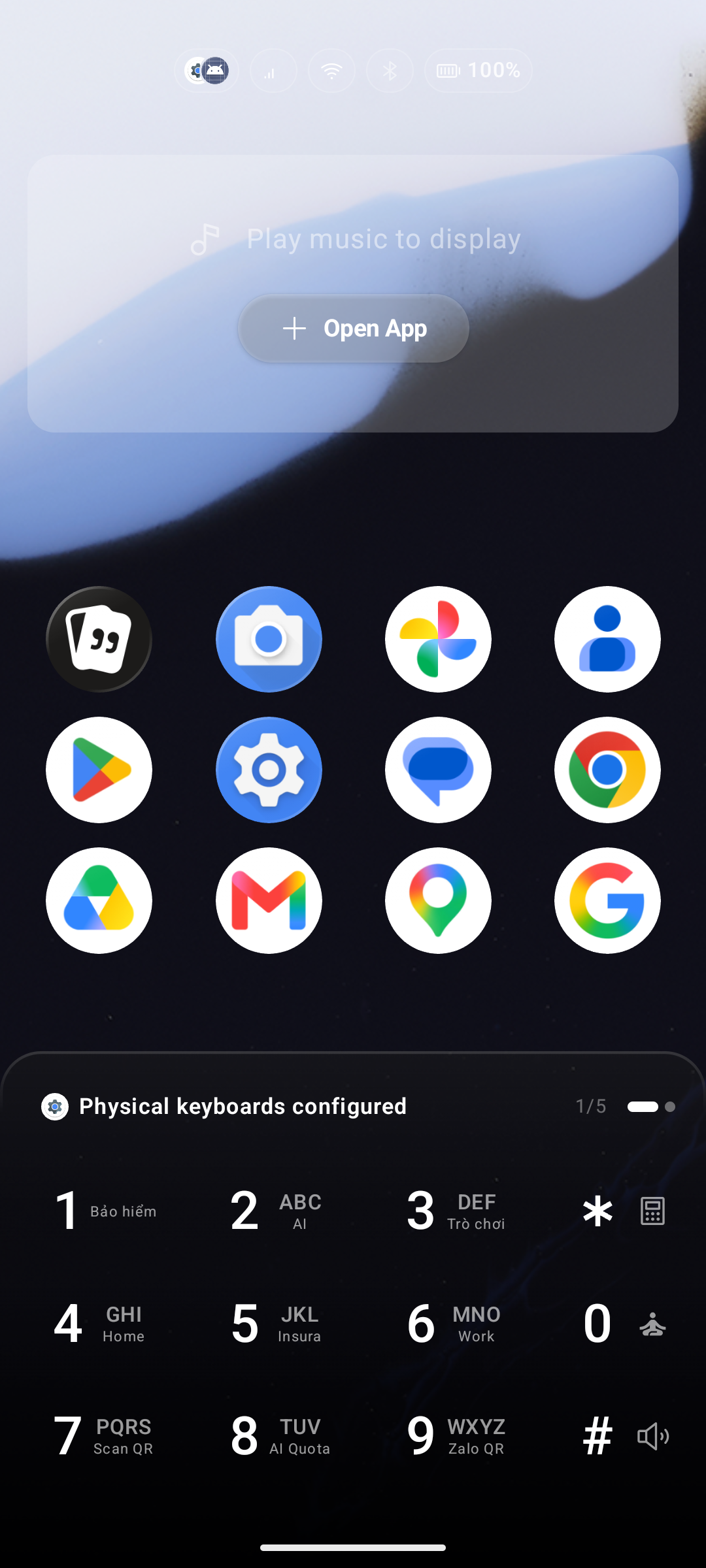
The media player requires Notification Access to detect active playback. Without it the idle screen appears and the "Open App" button prompts you to enable it. See Essential System Permissions.
Active State — Music Is Playing
When a supported app is playing audio, the media player shows the track name, artist, and playback controls (Previous / Play-Pause / Next).
Synced Lyrics
💎 Pro feature — playback controls are free; Synced Lyrics requires Key Launcher Pro (fully available during your 30-day trial).
When Synced Lyrics is enabled, Key Launcher fetches the lyrics for the current track and scrolls them in sync with playback directly on the home screen. For setup and per-device troubleshooting (Xiaomi / Oppo / Vivo / Huawei), see the dedicated Synced Lyrics page.
Idle State — No Music Playing
When no audio session is active, the area shows an "Open App" button. Tapping it opens the Media App Chooser — a bottom sheet grid of your saved media apps. Tap any app to launch it.
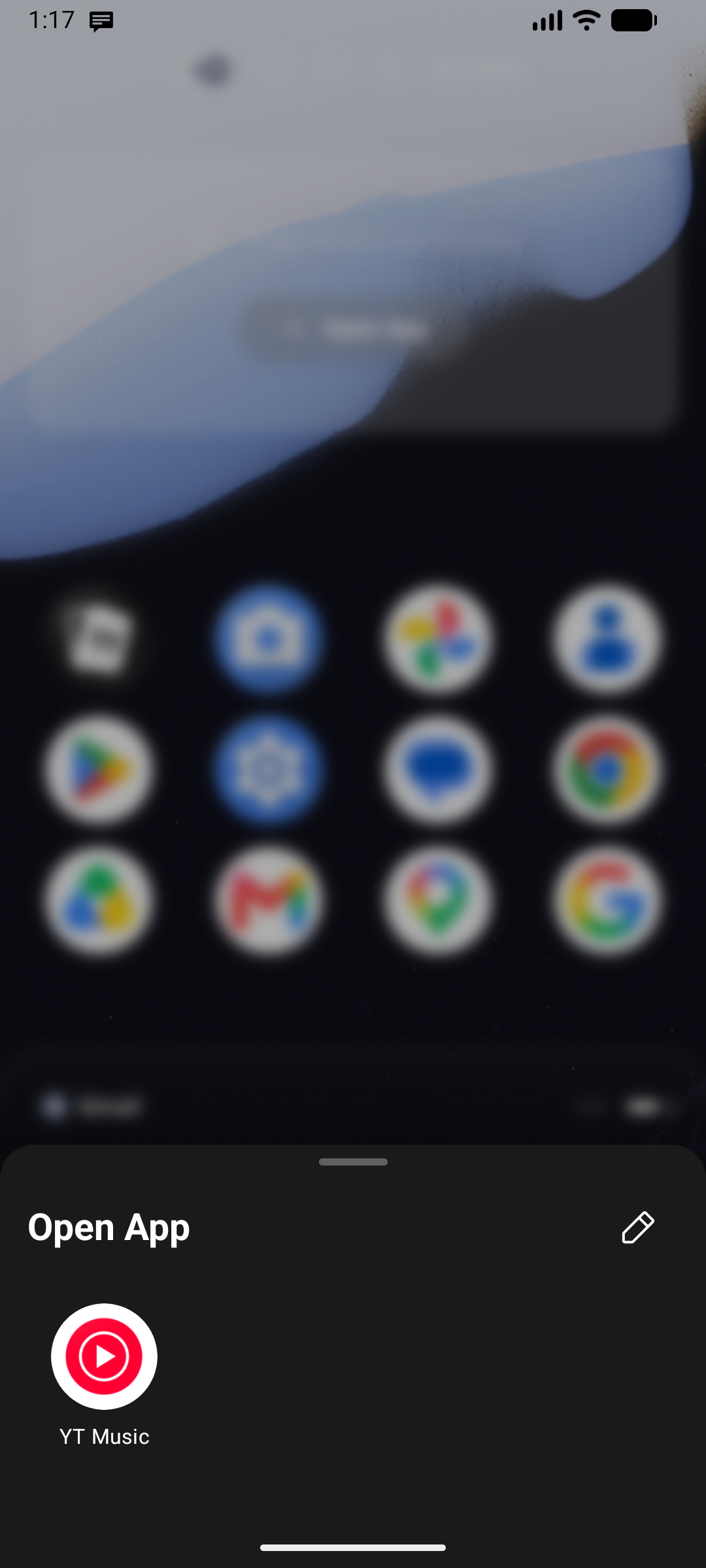
Managing Your Media Apps
Edit mode
Tap the Edit () icon in the top-right corner of the chooser:
- Each app icon shows a Close () badge — tap it to remove that app.
- A + tile appears at the end — tap it to open the full app picker with a search bar. Tap any app to add it instantly.
Tap Done to leave edit mode. All changes save immediately — there is no Save button.
Default list
If you have never customized the list, Key Launcher auto-populates it from apps Android categorizes as Audio or Video, or whose name contains keywords like "Music", "Player", "Spotify", "Youtube", or "Soundcloud".
Effect on the active player
The app list also acts as a filter for which apps' media sessions appear in the active player bar. If an app is not in your list, its playback will not show even when it is running.