QWERTY Keyboard
Key Launcher is not limited to the 9-key grid. Settings → Keyboard → Keyboard type switches the whole home-screen keypad between T9 and a full QWERTY keyboard, and everything else on the tab adapts to the choice.
Both keyboards feed the same search engine — a letter query is matched as text, an all-digit query is still matched the T9 way — so nothing you already rely on changes when you switch.
Keyboard type
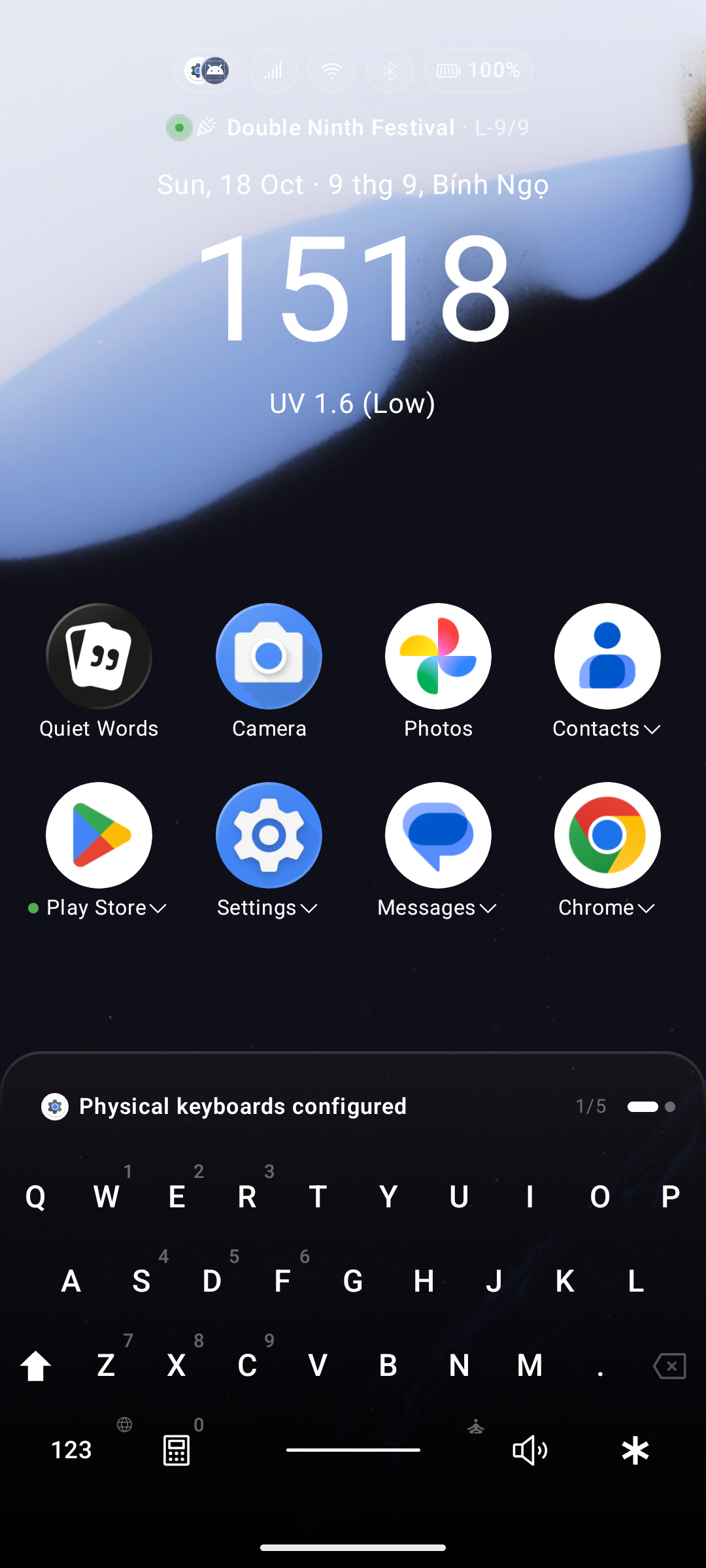
The Keyboard type dropdown sits at the very top of the Keyboard tab, above the live preview, because it decides what the rest of the settings mean:
| Type | What you get |
|---|---|
| T9 (default) | The classic 3 × 4 number grid |
| QWERTY | A full letter keyboard — tap ?123 to reach numbers and symbols |
QWERTY Layouts & Korean Hangul
When QWERTY is selected, the QWERTY layout dropdown provides multiple layouts:
| Layout | Shape |
|---|---|
| BlackBerry (default) | Hardware-keyboard shape. The symbol layer puts 1-2-3 / 4-5-6 / 7-8-9 in a keypad block over wer / sdf / zxc, so the number positions you learned on T9 still work |
| Standard | Touch-keyboard shape, numbers spread across the top row |
| QWERTZ | Standard shape with Z and Y swapped (German layout) |
| AZERTY | French layout, with M moved onto the middle row |
| Korean Hangul (2-Set) | Native 2-set Korean layout with real-time jamo composition and Chosung initial-consonant search |
Gboard-Style Multi-Language Input
Just like standard mobile keyboards, you can add and switch between multiple input languages directly on the QWERTY keyboard:
- Tap or hold the globe / language key on the spacebar row to switch active languages on the fly.
- Supports accented characters and localized character variants without switching launcher language.
Hold Enter to Fan Out Search Results
When typing a query on the QWERTY keyboard:
- Tap Enter: Launches the top matching result.
- Hold Enter: Fans out your top search results in a smooth arc above the keyboard. Slide your thumb across to the result you want and release to launch immediately.
The Symbol Layer
- ?123 switches to numbers, punctuation and symbols; ABC switches back.
- Returning to the home screen (or clearing the query) always brings the letter layer back with the first letter capitalised, so the keyboard is ready to type an app name.
- ★ — the Super Shortcut key — lives on the symbol layer, in the Shift key's place. If you turn Super Shortcuts off, that key falls back to Shift.
Numbers printed on the letter keys
Show Numbers on Letter Keys (on by default) prints the digit from the symbol layer in the corner of each letter key.
Hold a letter to type its symbol
Hold a letter key and a bubble shows the character sitting under it on the symbol layer:
- Drag up, then release → types that character.
- Release without moving → runs the letter's Super Shortcut.
- Drag down or sideways → cancels, nothing happens.
Super Shortcuts on letter keys
Every letter key can hold a Super Shortcut, and the slot follows the position of the key, not the letter:
- On BlackBerry,
w e r / s d f / z x csit on top of digits 1–9, so they share those nine slots. The remaining 17 letters get slots of their own. - On Standard, the top row
q w e r t y u i ocovers digits 1–9.
Tapping ★ opens Super Shortcut Mode drawn on the QWERTY frame itself.
Other QWERTY keys
| Key | Behaviour |
|---|---|
| Enter | Opens the first search result — and wears that result's own icon. Long-press fans out results |
| Shift | Tap for one capital, long-press for Caps Lock |
| ⌫ | Its own key, so # stays available for the Private Vault |
| Space | Long-press it to enter Super Focus — available on both layers |
| Calculator | Left of the space bar on the letter layer |
| Ringer | Right of the space bar on the letter layer — tap to cycle ring → vibrate → silent |
| Flashlight | Right of the space bar on the symbol layer (BlackBerry). Green dot indicates light is active |